

Layout fidelity · 9 min read
Word to PDF Formatting Fidelity: Fonts, Tables and Page Breaks
Understand why Word layouts can shift during PDF conversion and how to preflight fonts, tables, images, sections and accessibility.
Published and technically reviewed by the PDFStack Team ·
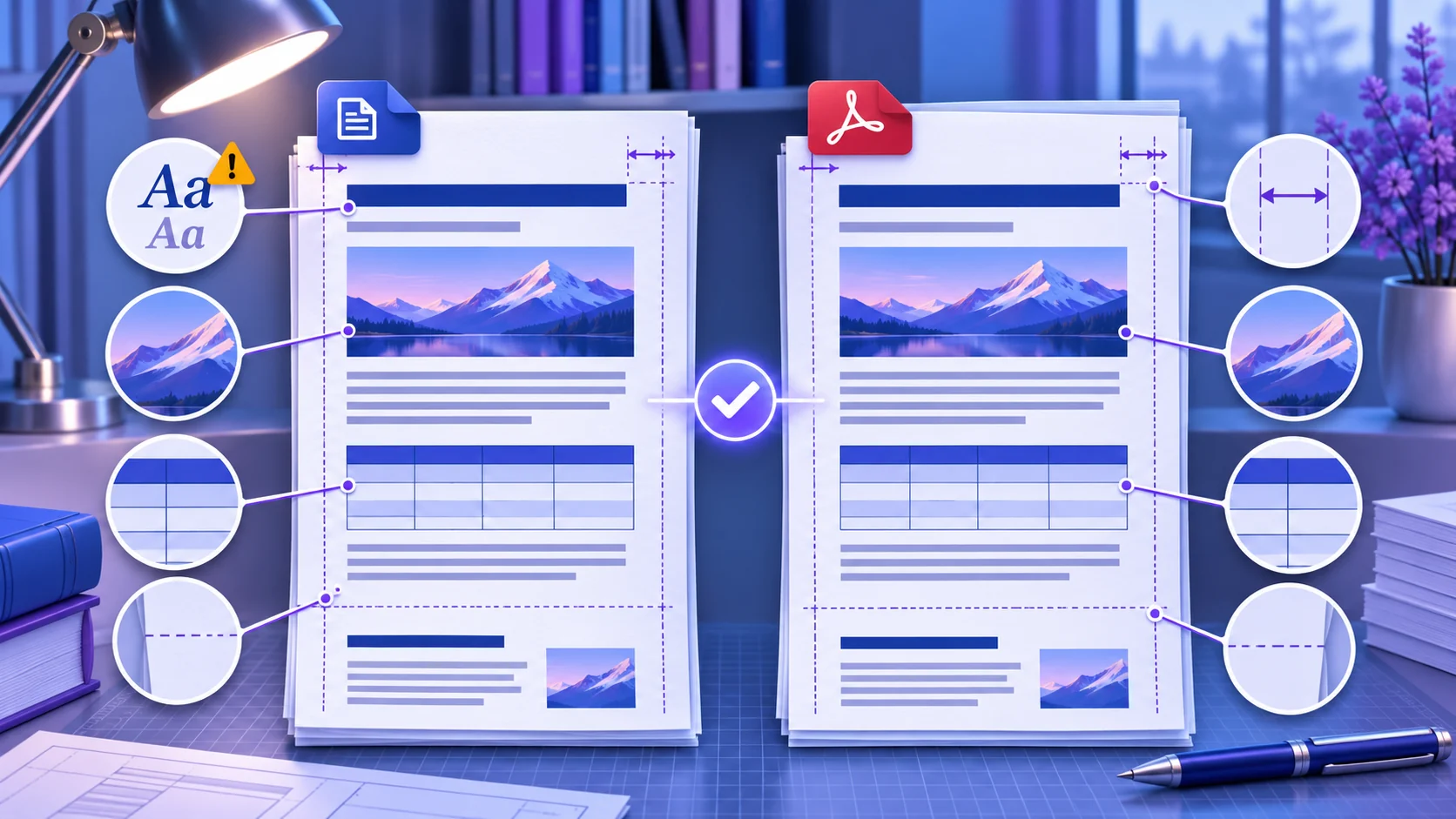
Editable flow meets fixed pages
A word processor lays out content using fonts, styles, section settings and a pagination engine. PDF records the resulting pages. The transition is usually straightforward for conventional documents, but a small change in font metrics or available width can move a line, push a paragraph or create an extra page.
That is why fidelity should be evaluated at the page level. Text content can be correct while page breaks, table rows or floating objects differ from the authoring view.
Fonts are the first fidelity checkpoint
If a source font is unavailable or cannot be embedded, the conversion engine may substitute another font. A substitute can have different glyph widths, x-height and line spacing, causing new wraps and pagination changes. Microsoft also documents font substitution and bitmap fallback as considerations in its own PDF export options.
Use common fonts for routine documents. For brand or legal material, confirm embedding rights, package the approved font where your workflow permits it, and inspect every critical heading, signature line and form field in the PDF.
- ✓Check font family and weight, not just approximate appearance.
- ✓Inspect symbols, equations and non-Latin scripts carefully.
- ✓Look for changed line wraps near page bottoms.
- ✓Keep the editable source for future corrections.
Tables, images and anchored objects
Wide tables can overflow margins, split rows or force a landscape section. Set explicit column widths where practical, repeat header rows intentionally and avoid placing essential content beyond the printable area. Nested tables and text boxes deserve additional review.
Inline images generally travel more predictably than floating objects anchored to paragraphs. Check cropping, wrapping, captions and resolution. Objects linked to local files may not behave like fully embedded assets in a remote conversion environment.
Sections, page breaks and generated content
A manual page break is usually more stable than repeated empty paragraphs. Section breaks control margins, columns, orientation, headers and page numbering, so accidental breaks can produce blank pages or unexpected header changes.
Update the table of contents, figure lists, fields and cross-references before conversion. A conversion service renders the document it receives; it should not be assumed to resolve every stale field exactly as the authoring application would.
Accessibility and final QA
Visual similarity does not guarantee an accessible PDF. Verify headings, reading order, alternative text, link purpose and table structure with the tools required by your publishing standard. The current PDFStack workflow does not promise a particular PDF/UA or PDF/A conformance level.
For high-stakes output, compare representative pages visually, search for known phrases, test links, review document properties and run the required accessibility or archival validator before distribution.
Frequently asked questions
Why did the PDF gain an extra page?
Font substitution, changed line spacing, table reflow or section settings can push content onto another page.
Does visual similarity prove accessibility?
No. Reading order, tags, alternatives and other semantic properties require separate validation.