

Batch workflow · 8 min read
How to Batch Convert Word Documents to PDF Safely
Prepare mixed DOC, DOCX, ODT and RTF files, monitor independent conversion jobs, recover failures and verify a PDF batch.
Published and technically reviewed by the PDFStack Team ·
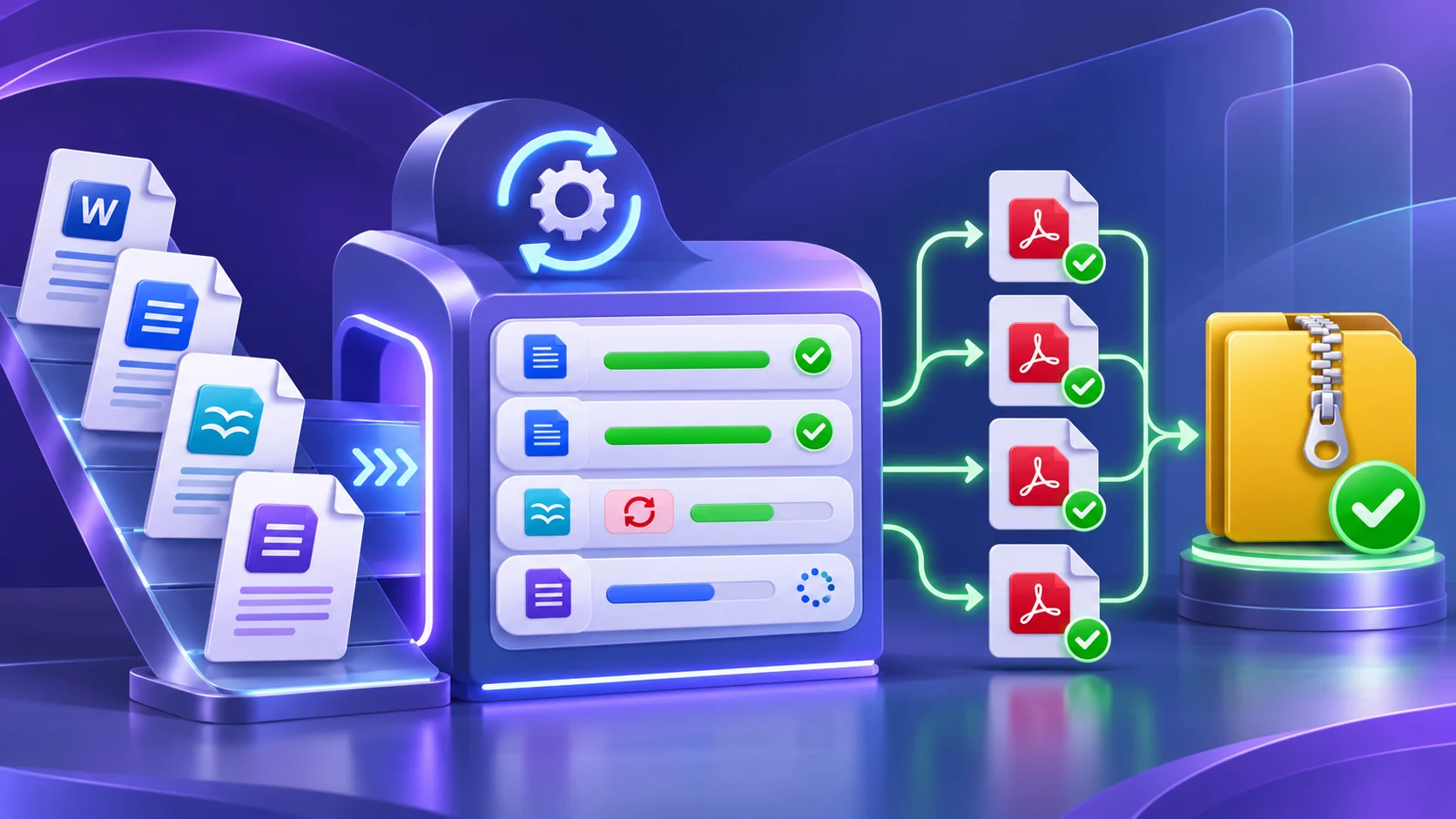
Batch conversion is a collection of independent jobs
A reliable batch should not behave like one indivisible file. PDFStack tracks each source separately, showing its upload, conversion, completion, failure or cancellation state. Successful results remain available when another item fails.
This model is useful for application packs, reports, invoices and archived correspondence because a damaged legacy file does not have to invalidate every current DOCX in the same queue.
Organize files before uploading
Use meaningful filenames and remove duplicate drafts. Open unusual or old files locally before batching them, especially DOC, ODT and RTF sources created by different applications. Confirm that the filename extension matches the real document type.
Separate password-protected, macro-heavy or damaged documents for manual review. The output PDF is static; macros and Word-specific interactive behavior do not continue running in it.
- ✓Freeze the approved source versions.
- ✓Check the service-displayed per-file size and batch limits.
- ✓Group documents with similar review requirements.
- ✓Record expected filenames and page counts for reconciliation.
Monitor progress and failures
After upload, each file can enter a queue before processing. Keep the browser tab available while statuses update. Cancel an unwanted item without discarding unrelated completed work, and use retry only after examining the reported failure.
A retry is appropriate for a temporary processing failure. Repeating the same damaged or protected input is unlikely to help; repair, unlock or resave that document first.
Download individual PDFs or a ZIP
Download a single result when it needs immediate review. For several successful outputs, the ZIP action packages the completed PDFs for convenient transfer; the PDFs remain separate documents rather than being merged into one file.
Save the ZIP locally and extract it before final QA. Do not treat the archive listing alone as proof that every PDF opens or contains the intended pages.
Reconcile the completed batch
Match each source filename to an output, compare expected and actual page counts, and inspect a representative first, middle and final page. Search for a known phrase in text-heavy output and verify tables, headers, footers and signatures where they matter.
Store the final PDFs in the approved destination before temporary results expire. Follow the organization’s retention, confidentiality and access-control requirements; ZIP packaging is convenient transport, not encryption.
Frequently asked questions
Does the ZIP merge the PDFs?
No. It packages separate completed PDF files into one downloadable archive.
Can I retry only failed documents?
Yes. The workflow keeps successful results and provides retry handling for failed items.