

Conversion guide · 8 min read
How to Convert Word to PDF: DOC, DOCX, ODT and RTF
Convert a Word-family document into a fixed-layout PDF, inspect the result, and avoid common font, page-break and compatibility problems.
Published and technically reviewed by the PDFStack Team ·
Why convert an editable document to PDF?
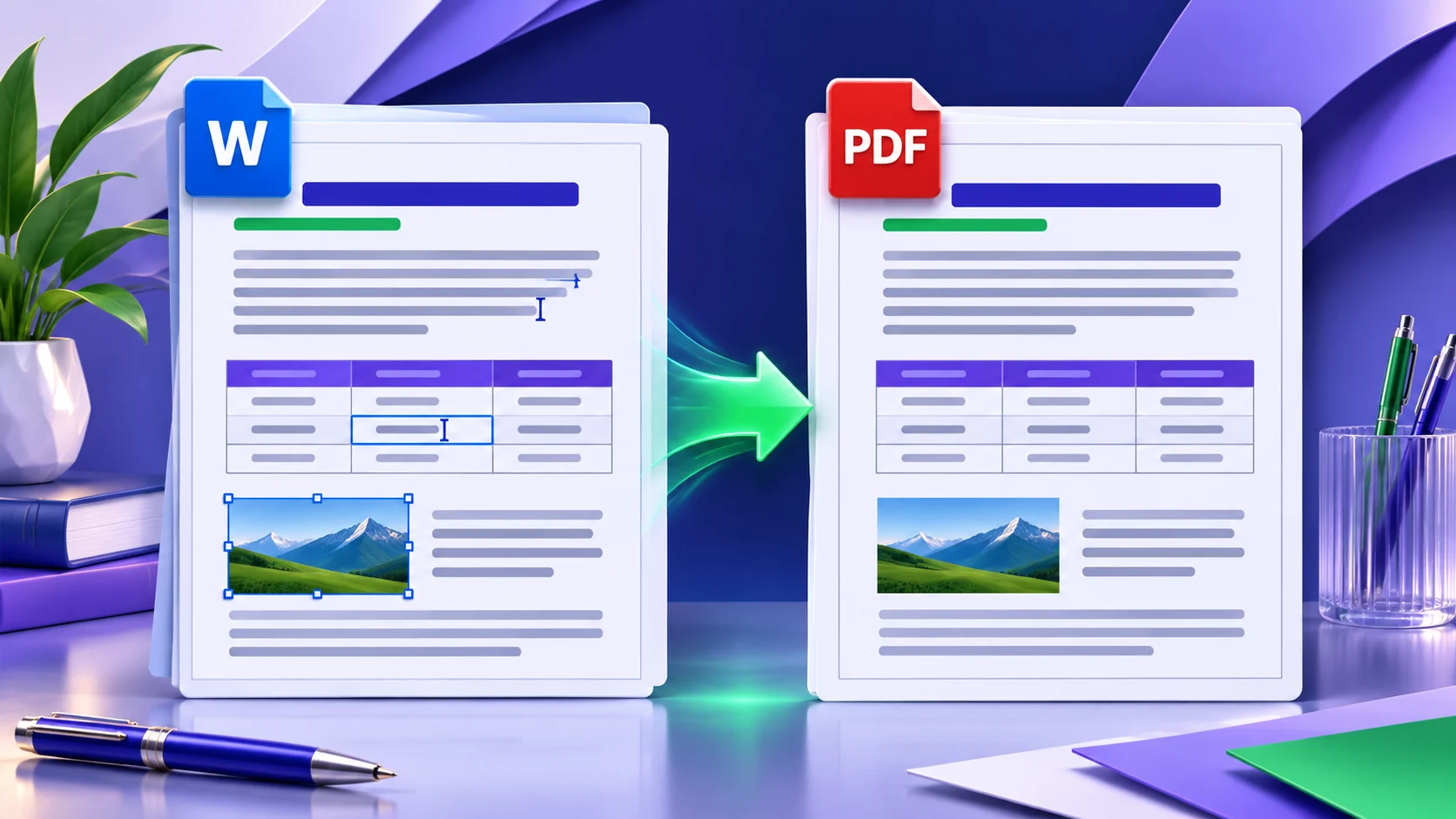
Word-processing files are designed for editing. Their text can reflow when fonts, printer settings, application versions or page defaults change. PDF describes a fixed page, making it more predictable for reading, printing, approval and distribution across different devices.
Conversion creates a separate output; it does not make the source document disappear or turn the PDF into an uneditable security boundary. Keep the original DOCX or other source as the editable master, and use the PDF as the distribution copy.
Prepare the source before conversion
Open the document in its authoring application and update fields, the table of contents, cross-references and page numbers. Accept or intentionally retain tracked changes, resolve comments, and check whether hidden text or markup should appear in the distributed copy.
Use fonts available to the conversion environment or embed fonts when the file format, font licence and authoring application allow it. Check section breaks, headers, footers, floating images and tables near page boundaries because these elements are most sensitive to layout differences.
- ✓Save the latest source version before uploading.
- ✓Remove passwords or access restrictions that prevent the document from opening.
- ✓Confirm the intended paper size, orientation and margins.
- ✓Check links and accessibility structure in the final PDF, not only in the source.
Convert with PDFStack step by step
Open Word to PDF and add a DOC, DOCX, ODT or RTF file. The workspace validates the extension and the current service capability before creating a temporary upload. For multiple files, each document receives an independent conversion status so one failure does not erase successful results.
Start the conversion and leave the page open while the service reports upload, queue and processing progress. When a file completes, preview the PDF before downloading it. A multi-file job can provide individual downloads and a ZIP containing the completed PDFs.
Inspect the converted PDF
Compare the PDF with the source at the beginning, middle and end of the document. Inspect page count, line wrapping, lists, table widths, captions, headers, footers, footnotes, images and section transitions. A successful job means a PDF was produced; it is not proof that every layout decision is identical.
Test hyperlinks, selectable text and reading order when those properties matter. Complex controls, macros, animations and editing features become static or are omitted because PDF is a fixed output rather than a Word runtime.
Handle failures without losing completed work
If one file fails, the completed PDFs remain available. Retry the failed item after checking that it is not damaged, password-protected or mislabeled with the wrong extension. For a legacy DOC or unusual ODT/RTF file, opening and resaving a clean DOCX copy in a trusted office application can reduce compatibility problems.
Downloaded files should be stored before the temporary service window ends. PDFStack does not claim permanent cloud storage; uploads and outputs follow the current retention and cleanup policy.
Frequently asked questions
Can I convert more than one Word document?
Yes. Add several supported files and download successful PDFs individually or as a completed batch ZIP.
Does conversion change the original document?
No. The original remains on your device; conversion creates a separate PDF result.