

Print preparation · 9 min read
Preparing SVG Graphics for PDF Printing: Sizes, Fonts and Transparency
Prepare viewBox dimensions, page size, margins, fonts, transparency, and artwork resolution for dependable PDF output.
Published and technically reviewed by the PDFStack Team · October 14, 2026
Start with dimensions and viewBox
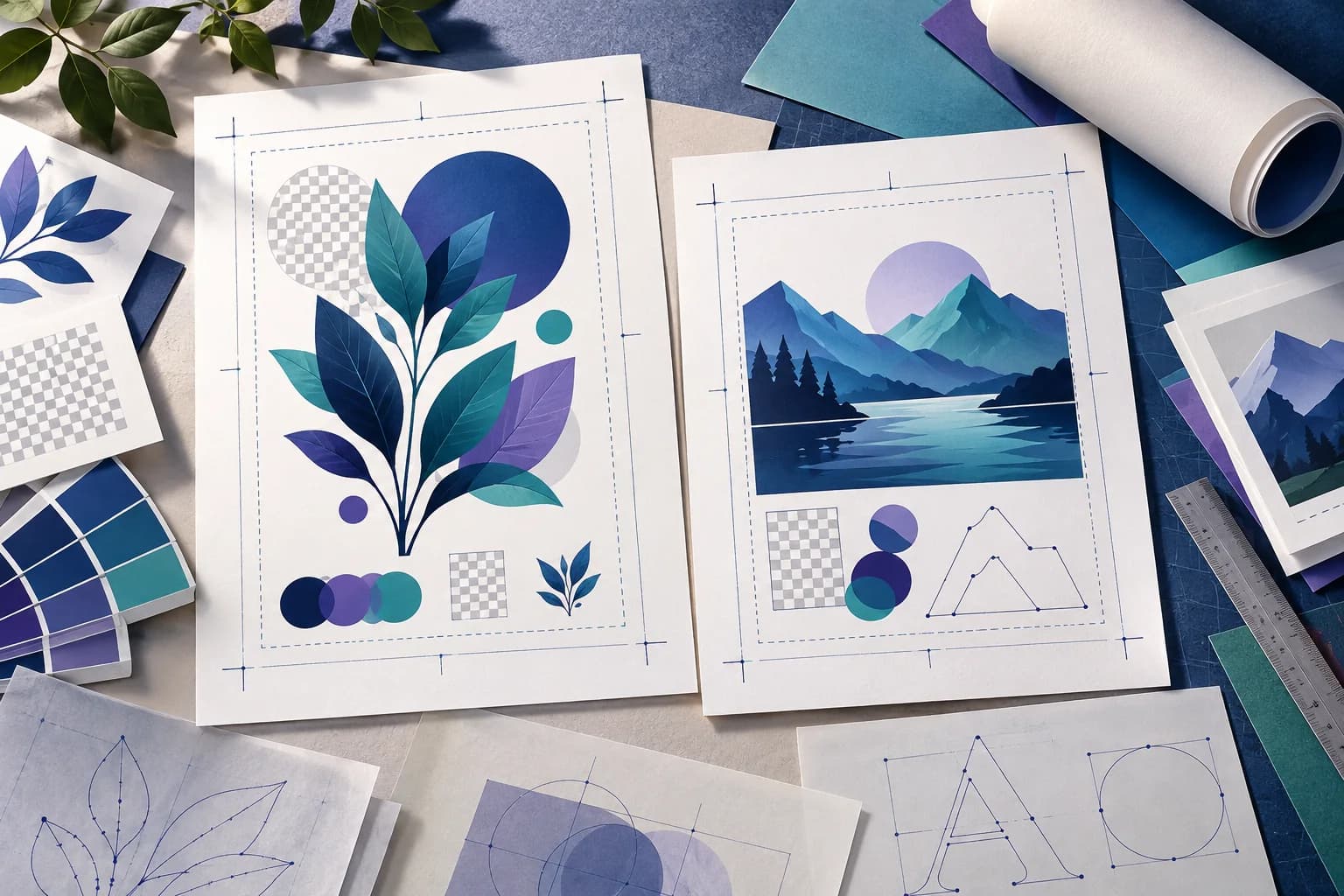
The width and height describe an SVG’s intended viewport. The viewBox maps the artwork’s internal coordinate system into that viewport. When explicit dimensions are missing, PDFStack uses the viewBox dimensions; when both are absent it falls back to 800 by 600.
Artwork outside the viewBox may be clipped by browser rendering. Excess empty viewBox space becomes empty space around the graphic before PDF margins are considered. Inspect the source bounds in the authoring application first.
Choose paper size, orientation, and margins
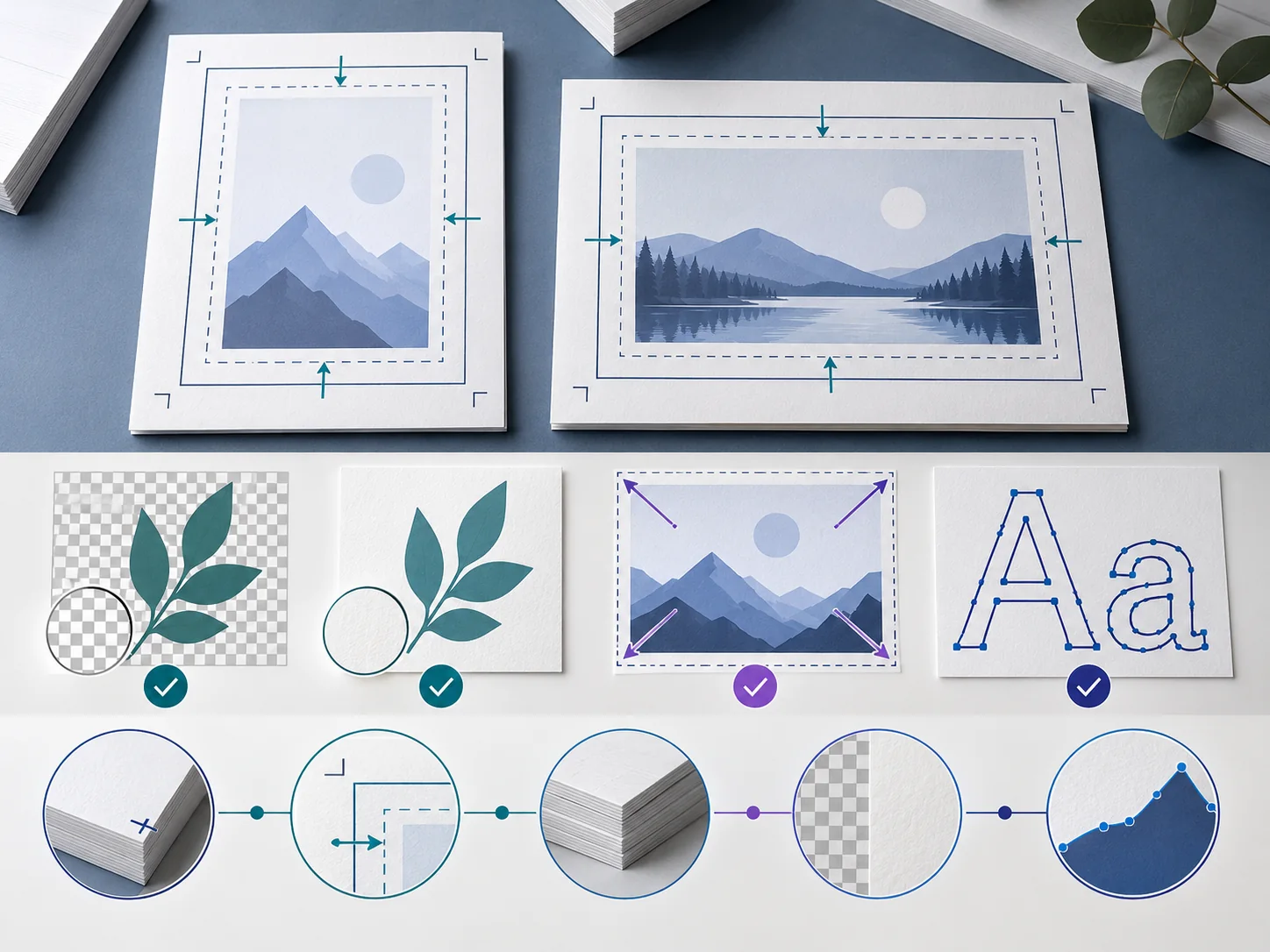
A4 is 595.28 by 841.89 PDF points, while US Letter is 612 by 792 points. Portrait uses those dimensions directly and landscape swaps them. PDFStack offers 0, 18, or 36 point margins and fits the complete graphic inside the remaining rectangle.
For a presentation graphic, landscape Letter may use the page more efficiently. For an icon sheet or report insert, portrait A4 with 18 or 36 point margins often provides clearer surrounding space. The converter does not add bleed, crop marks, or printer profiles.
- ✓A4 or Letter are the verified page choices.
- ✓Orientation changes the page, not the source artwork.
- ✓Fit mode preserves aspect ratio and does not crop.
- ✓Margins reduce the maximum printed artwork area.
Prepare fonts for predictable output
Browser rendering can only use fonts it can access. External font URLs are removed by the security sanitizer, and a missing local font can be substituted. For a brand-sensitive heading, use an installed/common font or convert the approved glyphs to paths before conversion.
Keep an editable text version of the source. Outlined text is visually predictable but no longer behaves as text for selection or accessibility, and the current raster PDF output is not searchable regardless.
Understand transparency and backgrounds
The sanitized SVG is rendered to a transparent canvas. When its PNG is placed on a normal PDF page, transparent areas reveal the page beneath and therefore appear white in typical PDF viewers and prints.
If artwork relies on blending against a colored web background, add the intended background inside the SVG before conversion. Avoid remote background images; embed permitted raster assets as supported data images.
Run a practical print check
Print or export a proof at the intended physical size. Inspect thin strokes, small labels, gradient bands, transparency edges, and the safe distance from page edges. Check every page when several SVGs are combined because each source can have different proportions.
For a synthetic example, a wide 1600 by 900 diagram fits landscape Letter more naturally than portrait A4. A square 1200 by 1200 icon sheet fits either page but leaves different whitespace. The fit calculation preserves each aspect ratio; it does not stretch the artwork.
Recognize common failures
Blank regions can indicate removed external assets, invalid markup, or unsupported filters. Different line breaks usually point to font substitution. Soft edges at high zoom indicate raster resolution limits rather than a failed PDF container.
Retain the SVG master and record the page settings used. If the job requires native vectors, spot colors, bleed, or strict prepress control, use a tested professional vector publishing tool instead of the current PDFStack raster renderer.
Frequently asked questions
Which page sizes are supported?
The current workspace supports A4 and US Letter in portrait or landscape.
Does the converter add print bleed?
No. It fits artwork inside the selected page and margin; it does not create bleed or crop marks.