
Conversion guide · 8 min read
How to Convert SVG to PDF Online: A Step-by-Step Guide
Prepare, arrange, and convert one or more SVG graphics into PDF pages using accurate layout and output settings.
Published and technically reviewed by the PDFStack Team · October 14, 2026
What SVG and PDF are designed to do
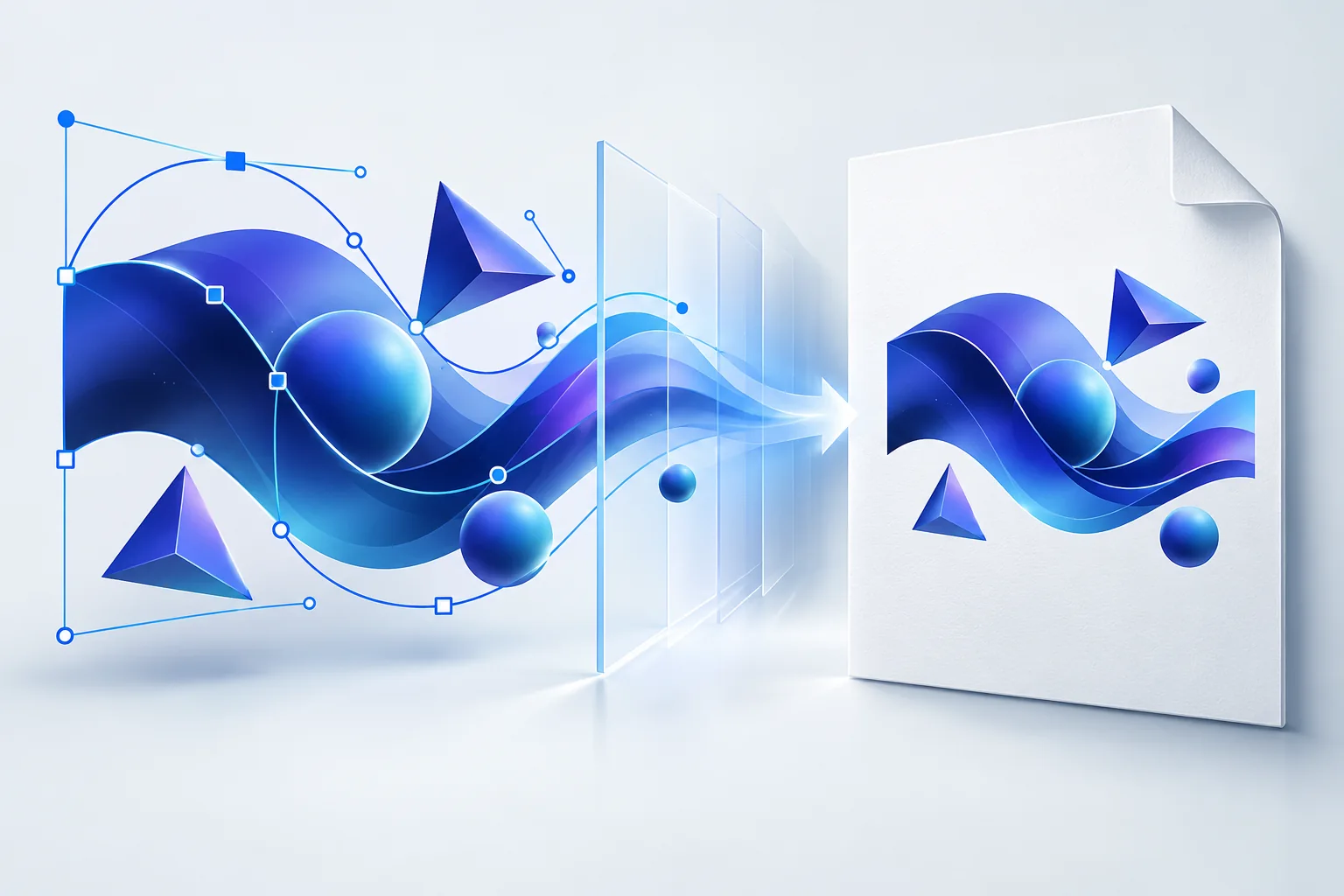
SVG is an XML-based graphics format that describes shapes, paths, paint, text, and layout. It is well suited to icons, diagrams, logos, and web illustrations because compatible viewers can draw those instructions at different sizes.
PDF is a fixed-page document format. Converting an SVG is useful when the graphic needs a defined A4 or Letter page, must join a report, or should open in a conventional document viewer. PDFStack currently places a rasterized rendering of each graphic on the chosen PDF page; it does not translate source paths into native PDF vector drawing commands.
Prepare an SVG before conversion
Open the source in a trusted SVG editor or browser and check its width, height, and viewBox. Embed any permitted bitmap images as data resources, and use common system fonts or convert critical lettering to paths in the authoring tool when licensing allows.
Remove scripts, interactive HTML, event handlers, and remote resources. PDFStack performs its own sanitization, but a clean self-contained source is easier to render consistently and avoids missing assets.
- ✓Keep the important artwork inside the viewBox.
- ✓Use a practical source resolution because the current output is rasterized.
- ✓Make fonts self-contained or convert critical display text to outlines.
- ✓Retain the original SVG as the editable master.
Convert SVG files step by step
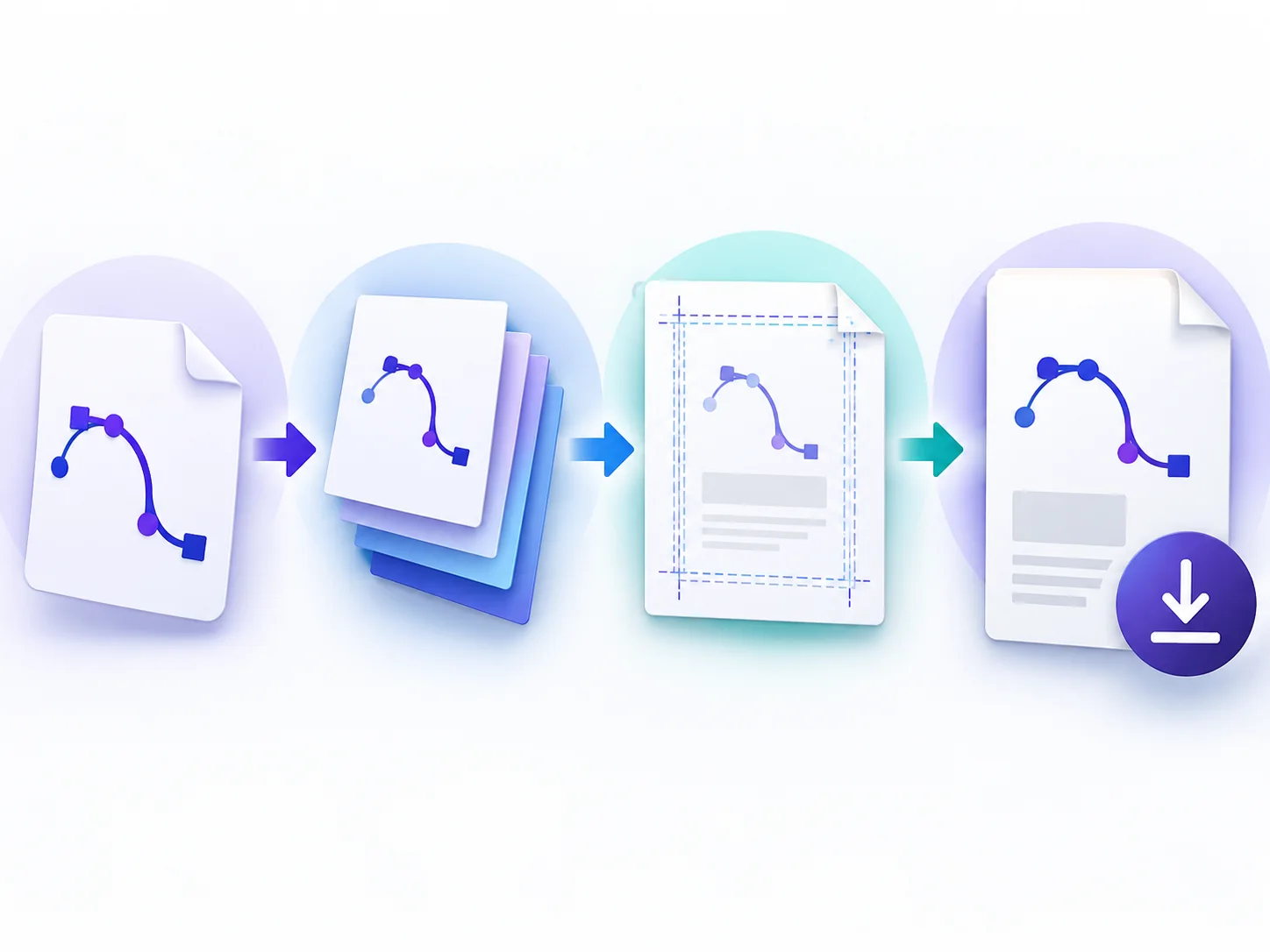
Open SVG to PDF and choose up to 20 files, each no larger than 10 MB. After validation, review the sanitized previews and dimensions. Reorder the files with the move controls; that order becomes page order in a combined PDF.
Choose A4 or US Letter, portrait or landscape, and a margin. The converter fits each full graphic inside the available page area without cropping. Select one combined multi-page PDF or separate one-page PDFs, set a filename for combined output, and start conversion.
Download and verify the result
The result panel reports the real output count, page count, and generated byte size. Preview the first PDF in the browser, then download it. For separate output, each source becomes a separately downloadable one-page PDF.
Open the download in the viewer used by the recipient. Check small type, gradients, transparency edges, page orientation, margins, and file order. Transparent SVG regions show the PDF page underneath, normally white.
Mobile and troubleshooting guidance
The converter works in modern mobile browsers, but complex artwork and several large canvases can consume substantial memory. A desktop browser is preferable for large batches. If rendering fails, confirm that the XML is valid, fonts are available, remote images are removed, and the source dimensions are not extreme.
A blurry result usually means the source rendered to too few canvas pixels for the intended print or zoom size. Increase the SVG’s explicit width and height or use a tested vector-preserving desktop workflow when native vector output is mandatory.
Frequently asked questions
Can several SVGs become one PDF?
Yes. Choose combined output and arrange the SVG cards in the desired page order.
Are files uploaded?
No. Validation, rendering, and PDF creation occur in the browser.