

Workflow comparison · 9 min read
Rasterize PDF vs Flatten PDF: What Is the Difference?
Compare page rasterization with form or annotation flattening and choose the workflow that matches the document behavior you need.
Published and technically reviewed by the PDFStack Team ·
Flattening and rasterization are not synonyms
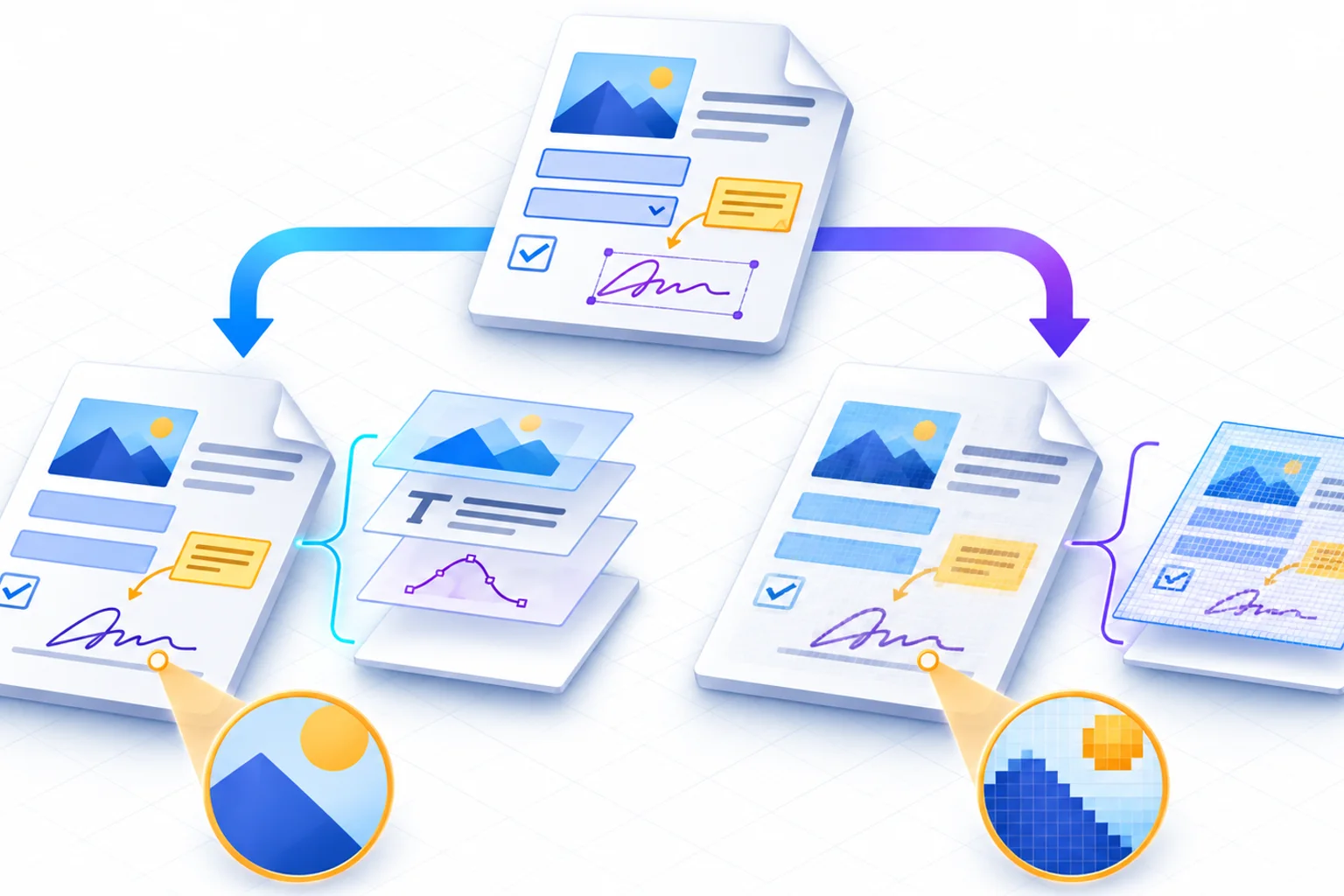
Flattening usually means taking a particular interactive or overlay element—such as a form-field appearance—and making it part of the page content. The remaining PDF page can still contain text, vectors, images, links, and other structures.
Rasterization goes further: it renders the visible page as pixels and rebuilds the page from that image. This broad conversion is why the result loses selection, search, editable vectors, accessibility tags, live forms, and original link behavior unless those capabilities are recreated later.
When form flattening is the better choice
Choose a dedicated form-flattening workflow when completed field values should look fixed but retaining other page content matters. A selective workflow can preserve more of the PDF than whole-page rasterization.
Form appearance handling varies across PDFs, so test the result. Signature widgets also require special care: changing a signed document can invalidate its cryptographic signature even when the visible signature mark remains.
- ✓Preserve the signed original.
- ✓Check every field appearance before sharing.
- ✓Use the narrowest transformation that solves the problem.
- ✓Do not assume a visible signature image is still valid.
When whole-page rasterization helps
Rasterization is useful for a visual distribution copy when recipients do not need selectable text, live links, tags, form fields, or editable vectors. It can make the visible composition more consistent because each page becomes one image.
For example, a three-page application containing ordinary text, a diagram, and completed form appearances can be rendered into three image pages. The visual copy is easier to treat as fixed, but it is less accessible and less reusable than the source.
Why neither method is a security guarantee
Flattening is not encryption. Rasterization is not encryption either, and it should not be treated as a certified redaction method. A secure workflow depends on removing sensitive content, reviewing the output, controlling copies, and choosing suitable encryption or access controls.
If a page contains information that must not be disclosed, remove it with a dedicated redaction tool and verify the final bytes and appearance according to the required standard. Do not rely on simply covering text, flattening an overlay, or converting a screenshot.
Use a practical decision rule
If only form or annotation behavior needs to become fixed, start with the purpose-built flattening tool. If the entire page should become one visual image and loss of text and structure is acceptable, rasterization is the broader option.
If searchability is required after rasterization, run OCR and review its recognition quality. If accessibility, archival structure, native vectors, or signature validity is mandatory, retain the original and use a workflow designed for that requirement.
Frequently asked questions
Is a rasterized PDF the same as a flattened form?
No. Rasterization replaces each whole visible page with an image; form flattening targets form appearances while potentially retaining other PDF content.
Which method keeps searchable text?
A selective flattening workflow may retain other text. Whole-page rasterization does not, unless OCR is added afterward.