

Step-by-step guide · 8 min read
How to Rasterize PDF Pages in Your Browser
Convert each PDF page into a fixed image-based page, choose an appropriate render scale, and verify the rebuilt document.
Published and technically reviewed by the PDFStack Team ·
What rasterizing a PDF changes
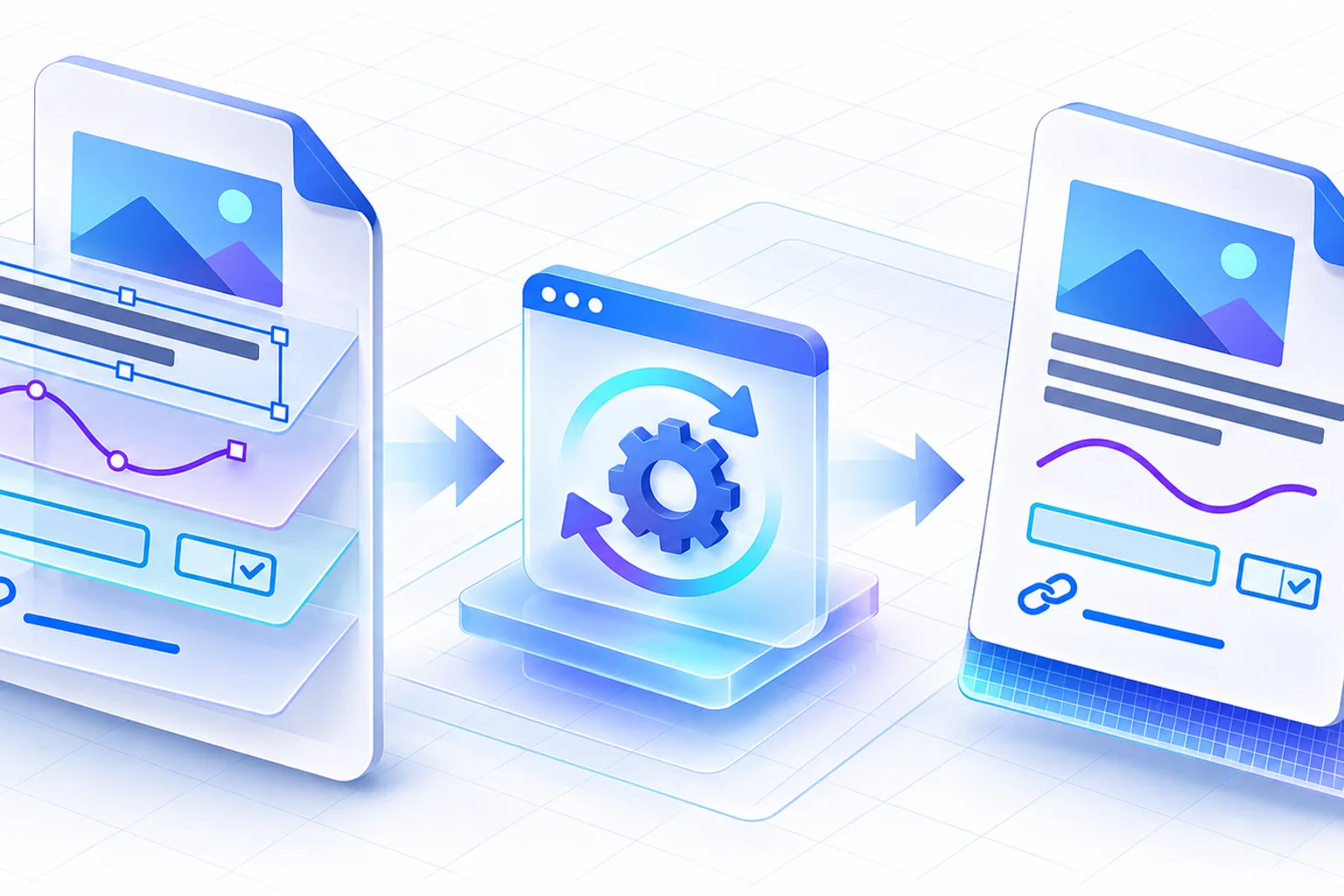
A normal PDF page can contain text, vector paths, bitmap images, links, form widgets, annotations, layers, tags, and other objects. Rasterization renders the visible page into a pixel grid, then places that image into a new PDF page.
The rebuilt file can preserve the visible layout and page geometry, but it no longer retains selectable text, live fields, original links, editable vectors, document tags, or the source signature state. Keep the original whenever those features matter.
Choose the PDF and render quality
Open Rasterize PDF and choose one PDF from your device. PDFStack processes the file in the browser tab. Standard uses a 1.5× PDF.js viewport and is the balanced default; High uses a 2× viewport for more pixels and usually sharper fine detail.
High quality needs more canvas memory and may take longer or produce a larger file. The tool encodes every rendered page as JPEG at 0.9 quality against an opaque white background, so it is not a lossless reconstruction of source objects.
- ✓Use Standard for ordinary screen documents.
- ✓Use High when small type or fine lines need closer inspection.
- ✓Keep the source PDF as the authoritative original.
- ✓Avoid promising a smaller file; image pages can be larger.
Run the local page-by-page process
Start rasterization and follow the real page progress. The renderer processes pages sequentially, which limits simultaneous canvas use. You can cancel between pages if the document is taking longer than expected.
For each page, PDFStack reads its displayed width, height, and rotation, renders the page to canvas, creates a JPEG blob, and draws that image onto a new PDF page using the original displayed page dimensions. Mixed page sizes and orientations therefore remain mixed in the output.
Review the rebuilt PDF
Use the result preview before downloading. Confirm page count, orientation, crop boundaries, small text, thin rules, image detail, and the expected visible state of forms and annotations. The downloaded filename identifies the file as rasterized while the source remains unchanged.
A successful download proves that a new PDF was created; it does not prove that every visual detail is acceptable for print, compliance, or archival use. Open the file in the recipient’s intended viewer for an additional check.
Decide what to do next
Run OCR PDF if the rasterized pages need searchable text. Use Compress PDF only when a smaller candidate is required, because rasterization itself is not a compression method. Use Protect PDF when encryption is needed.
Do not use rasterization as a substitute for verified redaction. If sensitive information must be removed, use a purpose-built redaction workflow, inspect the result, and retain an audit trail appropriate to the use case.
Frequently asked questions
Does PDFStack upload the PDF?
No. The current rasterization workflow reads, renders, and rebuilds the PDF in the browser.
Does the output preserve the original page size?
It preserves the displayed width, height, and orientation of every source page.