

Resolution and quality · 10 min read
PDF to Image Resolution and Quality: A Practical Pixel Guide
Understand render scale, pixel dimensions, encoder quality and why lossless output is not the same as preserving PDF vectors.
Published and technically reviewed by the PDFStack Team ·
Resolution begins at the render step
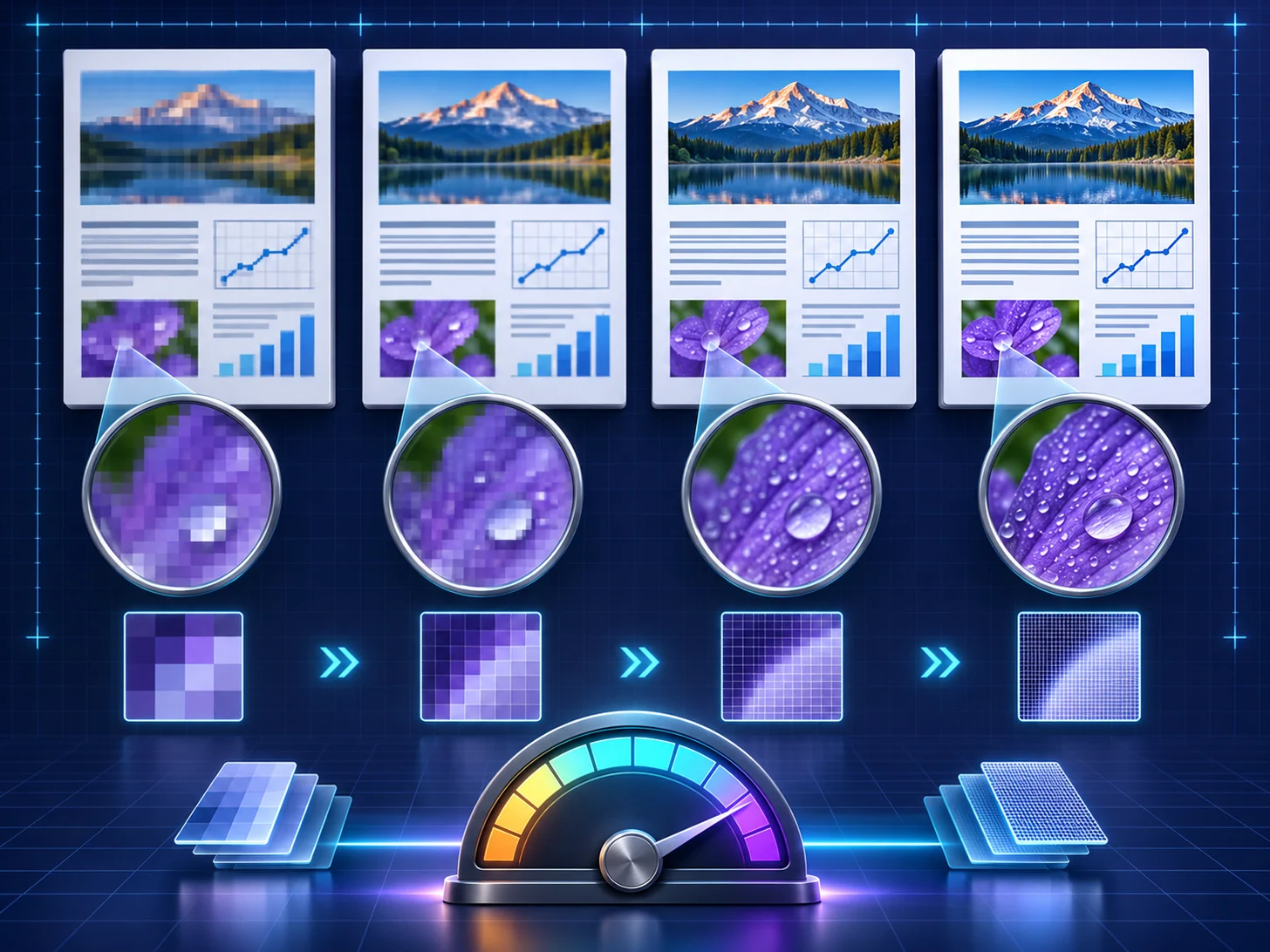
PDF.js creates a viewport for each page and a scale determines the canvas width and height. PDFStack exposes 1x, 2x, 3x and 4x scales. A 3x render has three times the source viewport width and height, so it contains nine times the pixel area of 1x.
This scale is more important than an arbitrary DPI label. Web image dimensions are ultimately measured in pixels, and canvas exports commonly carry 96 DPI metadata where the format supports resolution metadata. A 2400-pixel-wide image remains 2400 pixels wide regardless of how another application interprets that metadata.
Match scale to the destination
Use 1x for quick previews and low-demand thumbnails. Use 2x for ordinary screen use, 3x when small type and diagrams need more breathing room, and 4x only when the destination benefits from the additional pixels and the device has enough memory.
A large PDF page rendered at 4x can create a very large canvas. Because pixel count grows with both dimensions, doubling scale approximately quadruples the pixel workload. Batch size, page dimensions, browser limits and available device memory all affect practical performance.
- ✓Test one detail-heavy page before converting a long document.
- ✓Judge sharpness at the final display size, not only while zoomed far beyond it.
- ✓Use the source PDF for another render rather than enlarging an already exported image.
- ✓Choose lower scale for previews and higher scale only for approved final assets.
Separate render resolution from encoder quality
Render scale decides how many pixels exist. The JPG or WebP quality control decides how aggressively those pixels are compressed. Raising encoder quality cannot restore letters or lines that were never captured because the render scale was too low.
For JPG and WebP, a value of 100 requests the browser encoder’s maximum quality setting; it does not promise byte-for-byte losslessness. PNG and PDFStack’s BMP path avoid lossy image encoding, but they still contain only the rendered page pixels.
Evaluate the parts most likely to fail
Inspect small dark text on light backgrounds, reversed text, thin colored lines, gradients and photographs with fine texture. JPG artifacts often appear around high-contrast type and diagrams. A lossless PNG can retain those rendered edges, although it may be larger for photographic pages.
Also verify page geometry. The image should follow the PDF page viewport and preserve its aspect ratio. Do not stretch the output later to fit a different rectangle; crop or pad it deliberately in an image editor or resizing tool.
Use a repeatable quality check
Record the chosen format, scale and lossy quality alongside the destination dimensions. Compare a representative output on the actual website, slide deck or print workflow. This makes quality decisions reproducible instead of relying on labels such as high quality without measurable context.
Keep the original PDF and, when possible, a lossless master render. Create smaller delivery derivatives from that master only when the workflow requires them.
Frequently asked questions
Does 4x mean four times the number of pixels?
It means four times the width and four times the height of the 1x viewport, or sixteen times the total pixel area.
Can an image retain PDF vectors?
No. JPG, PNG, WebP and BMP are raster outputs. The original PDF is required to preserve its PDF text and vector structure.