

PDF conversion guide · 9 min read
How to Convert PDF Pages to Images Without Losing Useful Detail
Export all or selected PDF pages to JPG, PNG, WebP or BMP with deliberate resolution, quality and download settings.
Published and technically reviewed by the PDFStack Team ·
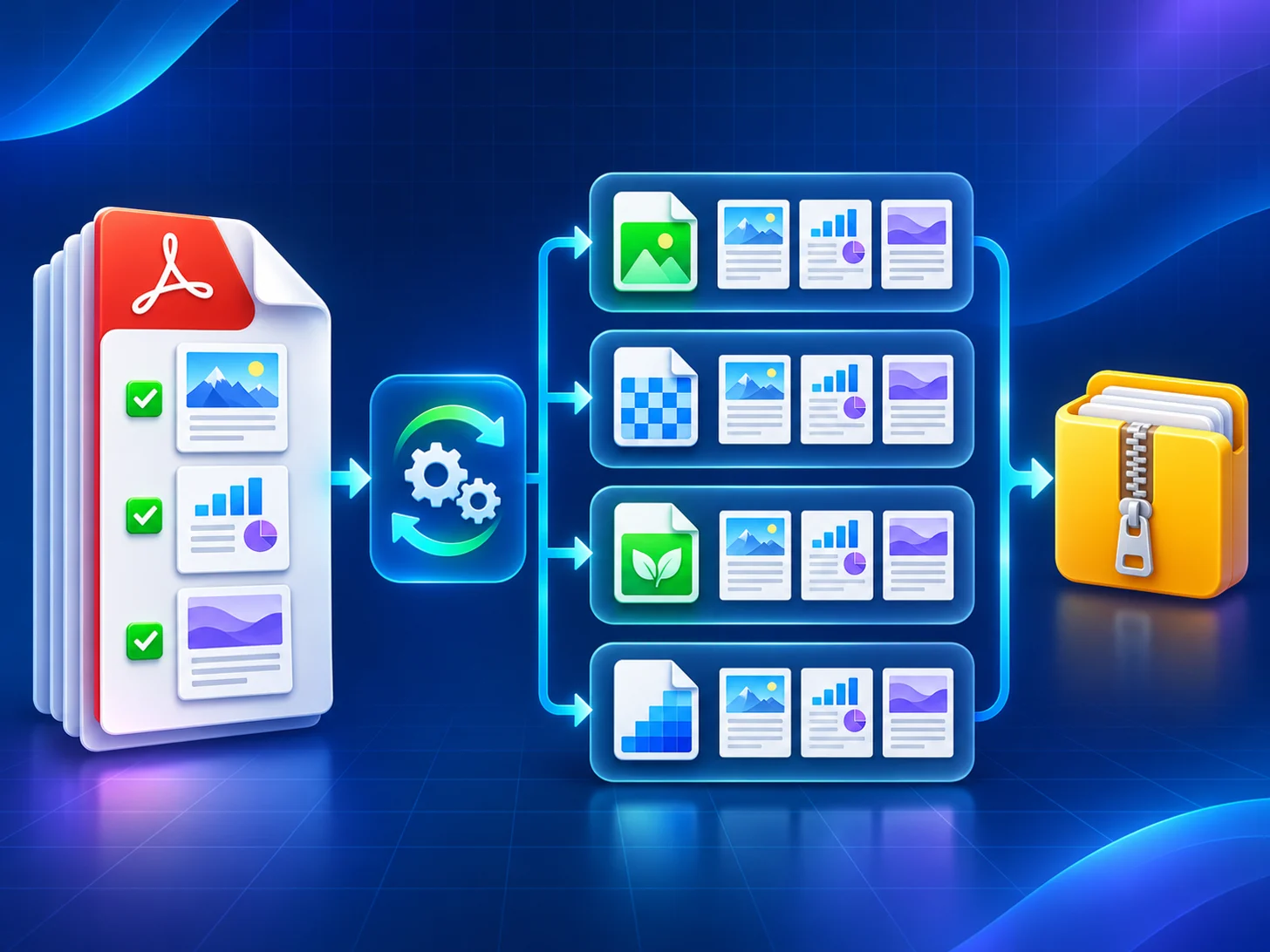
Decide which pages and pixels you actually need
A PDF page is not an image by default. It can contain scalable text, vectors, photographs, transparency and annotations. Converting it to JPG, PNG, WebP or BMP renders that page onto a fixed pixel grid. The result is easier to publish and share, but it no longer behaves like editable PDF text or vector artwork.
Start with the destination. A quick email preview needs fewer pixels than a zoomable chart, presentation background or print proof. Choosing the purpose first prevents unnecessarily large exports and avoids a second conversion that can compound quality loss.
Review the PDF before conversion
Add one PDF or a batch to PDFStack and let the browser create page previews. Open representative pages, especially pages with fine type, thin rules, photographs or unusual dimensions. The file list can be searched, sorted and reordered before conversion.
The converter reads and renders the selected files in the browser. No PDF upload is used for this conversion workflow, although the page still loads the libraries required for PDF rendering and ZIP creation.
- ✓Keep the original PDF as the master document.
- ✓Check wide, tall and rotated pages before running a large batch.
- ✓Separate documents that need different output formats or resolution scales.
- ✓Use a smaller sample when estimating memory use on a mobile device.
Select pages and output settings
Choose all pages, odd pages, even pages, a range such as 1-3, 6, or individual page buttons. PDFStack renders each selected page independently, so a failed page does not need to erase already completed outputs.
Resolution scale controls the pixel dimensions created by PDF.js. At the same page size, 2x produces twice the width and height of 1x, while 4x produces four times each dimension and therefore sixteen times as many pixels. Higher scales can retain finer rendered detail, but consume substantially more memory and storage.
Choose an image format intentionally
JPG and JPEG are the same encoded format with a different filename convention. They are useful for photographic pages and smaller downloads, but their compression is lossy. PNG uses lossless compression and usually protects sharp text and line art better. WebP can reduce web delivery size, while BMP is an uncompressed compatibility option that creates much larger files.
Lossless image encoding only preserves the pixels created by the renderer. It does not make a raster export equivalent to the PDF source, preserve searchable text or keep vectors infinitely scalable.
Inspect and package the results
After conversion, inspect a page at 100 percent and zoom into fine text, chart labels and edges. Compare output dimensions and file size against the intended destination. If the image is too soft, return to the source PDF and raise the resolution scale instead of repeatedly re-encoding the image.
Download a single page, selected pages, selected PDF groups or the full batch as a ZIP. Folder-aware ZIP output keeps pages from different source PDFs organized, while page numbers in filenames preserve the original sequence.
Frequently asked questions
Does PDF to image preserve searchable text?
No. The page becomes raster pixels. Keep the PDF when searchable or selectable text is required.
Is a higher scale always better?
It creates more pixels, but also requires more memory and produces larger files. Match the scale to the intended display or print size.