

Format and optimization · 9 min read
JPG, PNG or WebP? Resize Quality and File Size Guide
Select an output format, quality level and target dimensions for photographs, transparent graphics, web delivery and email.
Published and technically reviewed by the PDFStack Team ·
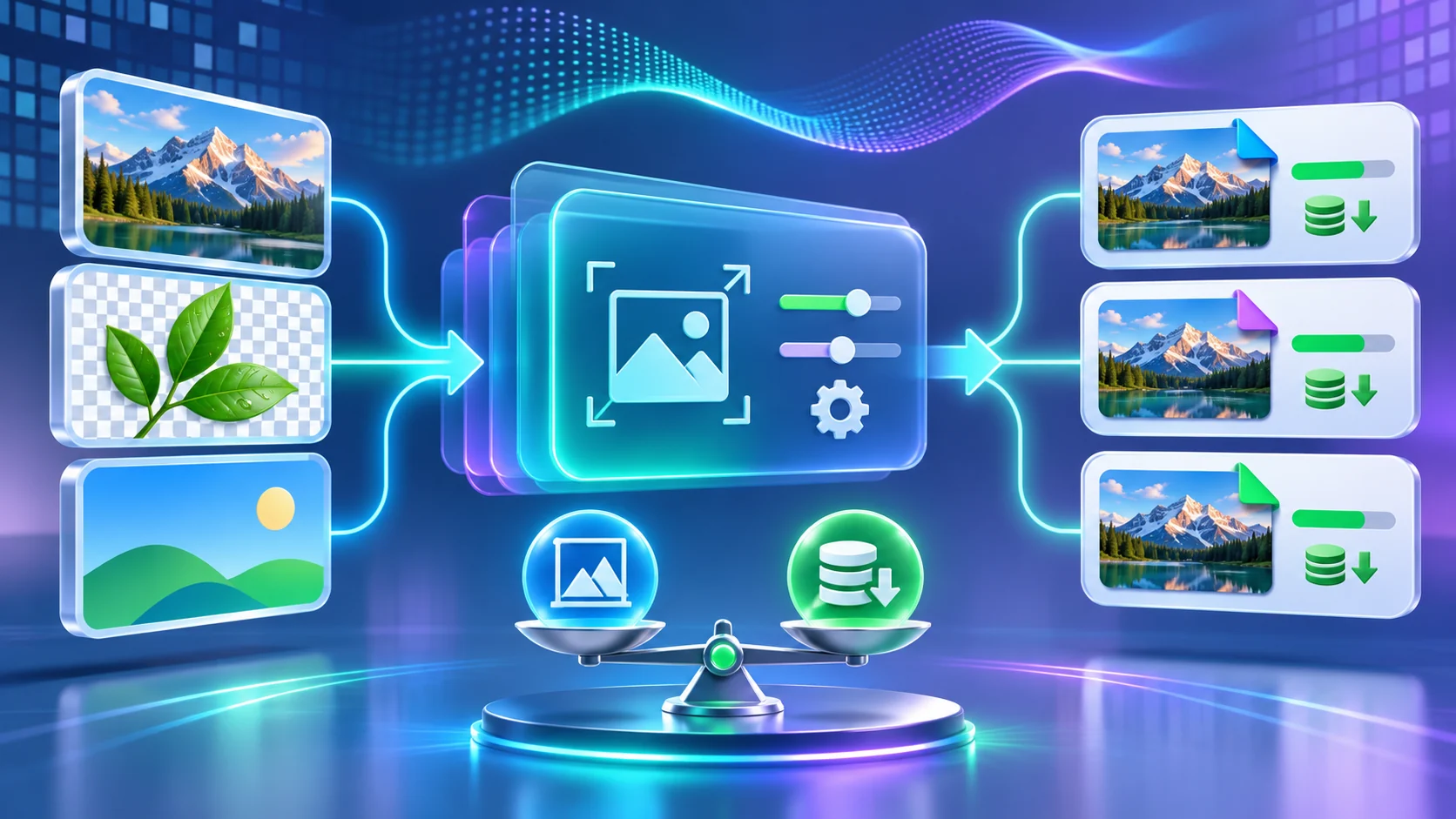
Dimensions and encoding solve different problems
Pixel dimensions determine how much spatial detail an image can contain. Encoding determines how those pixels are stored. Reducing a 6000-pixel photo to the size actually needed by a website can remove far more bytes than repeatedly lowering quality while keeping oversized dimensions.
Choose the destination dimensions first, then select a format and quality. Keep the source master separately so future destinations can be generated without enlarging an already reduced copy.
Choose JPG for compatible photographic output
JPEG uses lossy compression and is broadly supported. It is effective for photographs and continuous-tone images, but repeated encoding can introduce blocking, ringing and softened detail. It has no alpha channel, so transparent source pixels must be composited against a background.
Use a moderate quality for web or email and inspect faces, hair, foliage and gradients. The highest quality setting can create a substantially larger file without making the result identical to the original source.
Choose PNG for transparency and sharp graphics
PNG uses lossless compression and supports full alpha transparency. It is a strong choice for interface graphics, screenshots, diagrams and text-heavy images where compression artifacts around edges would be distracting.
Photographic PNGs are often much larger than JPG or WebP. PDFStack does not apply the JPG/WebP quality slider to PNG because PNG export is not controlled by the same lossy quality parameter.
- ✓Use PNG for sharp raster graphics and transparent pixels.
- ✓Use JPG for many opaque photographs and broad compatibility.
- ✓Use WebP for modern web delivery when your compatibility plan supports it.
- ✓Always verify actual output size and appearance with representative images.
Choose WebP for efficient modern web delivery
WebP supports photographic compression and transparency, and modern browsers broadly support it. MDN describes it as an efficient choice for web images, while recommending compatibility fallbacks when older environments matter.
The browser’s canvas encoder determines the exact WebP result. Quality values are requests from zero to one at the API level, not a universal visual scale shared by every encoder or format.
Understand target-size optimization
When target size is enabled for JPG or WebP, PDFStack encodes at the selected quality and lowers quality in steps while the output remains above the requested number of kilobytes. It stops at the tool’s minimum quality threshold, so the target is best effort rather than a guarantee.
If a result remains too large, reduce its pixel dimensions or accept more quality loss. If it looks soft, increase dimensions only when the destination requires them and start again from the original master.
Metadata, privacy and final checks
The resize workflow draws decoded pixels to a new canvas and exports a new image. This removes most embedded EXIF, GPS and camera metadata rather than copying the original file container. Do not treat that as a forensic metadata-erasure guarantee without checking the downloaded result with a metadata inspection tool.
All processing and ZIP creation occur in the browser. Review dimensions, transparency, background color, format, filename and byte size before publishing.
Frequently asked questions
Does 100 percent quality mean lossless?
No. For JPG and lossy WebP it requests maximum encoder quality, but the image is still re-encoded and may differ from the source.
Is the target file size guaranteed?
No. It is a best-effort loop that stops when the target is reached or the minimum quality threshold is reached.