

Batch resizing guide · 9 min read
How to Resize Multiple Images at Once Without Uploading Them
Resize a JPG, PNG and WebP batch with shared dimensions, per-image previews, naming rules and a local ZIP download.
Published and technically reviewed by the PDFStack Team ·
Start with an output specification
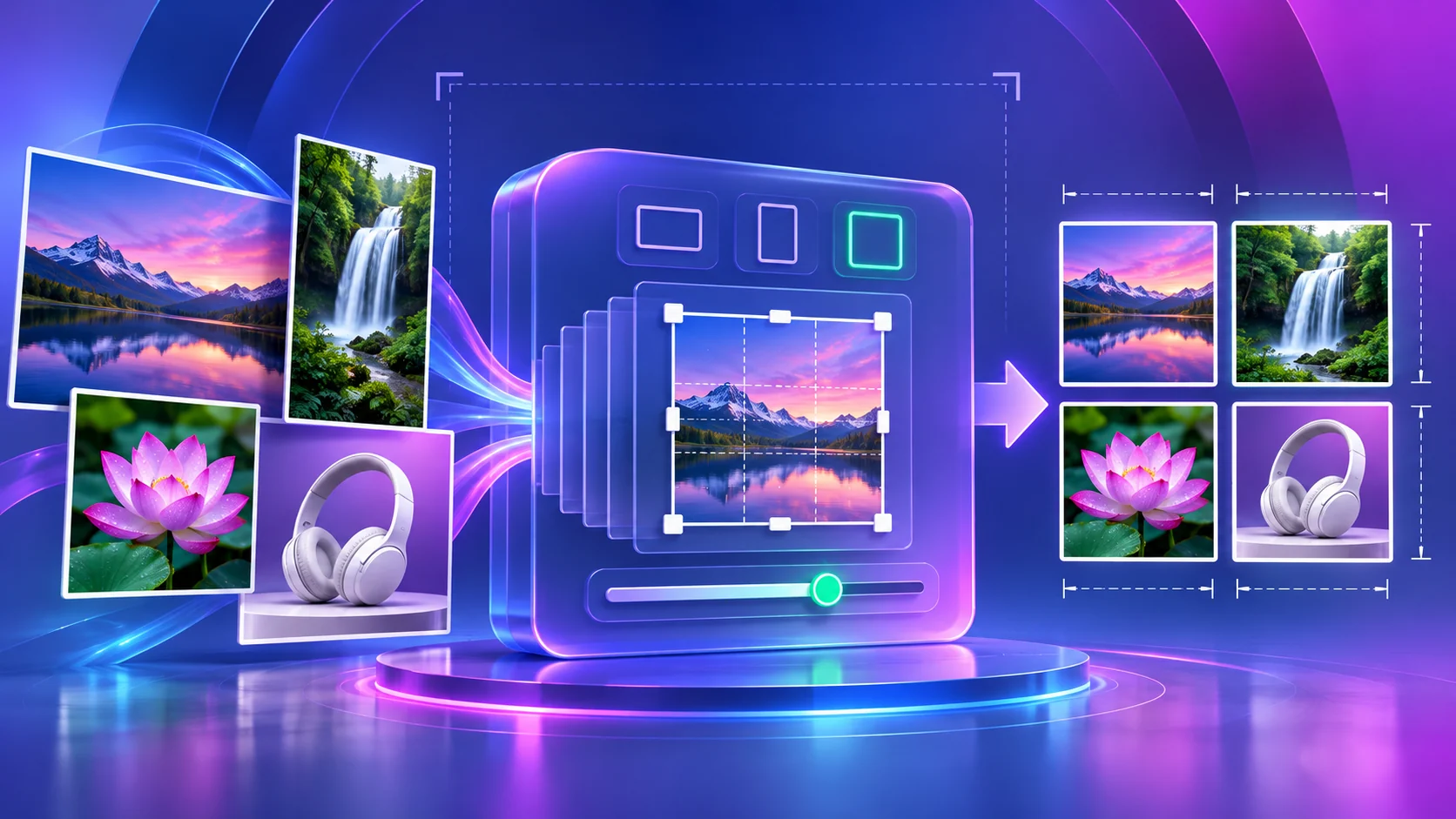
A dependable batch starts with a clear destination. A website hero, product marketplace, email campaign and social post can require different pixel dimensions, aspect ratios, file formats and file-size targets. Record those requirements before changing the source images.
Keep the original files as masters. Resizing creates new pixel data, and a smaller raster image cannot later recover detail discarded during downscaling or lossy encoding.
Add and review the image batch
PDFStack accepts JPG, JPEG, PNG and WebP files in the Bulk Image Resize workspace. Images are decoded locally, and the queue shows filename, source dimensions and size before processing. Unsupported files are skipped rather than silently renamed.
Select only the images that should receive the current settings. This is useful when a folder contains both portrait and landscape assets that need different output rules. The preview uses one selected image as a representative check before the complete batch runs.
- ✓Confirm that every source opens correctly before processing.
- ✓Separate assets that require different aspect ratios.
- ✓Retain originals outside the download folder.
- ✓Use the displayed source dimensions to identify unexpectedly small images.
Choose the resizing rule
Width and height modes preserve aspect ratio while solving the other dimension automatically. Percentage scales every selected image relative to its source. Longest Side standardizes the dominant dimension, while Maximum Dimensions fits each image inside a bounding box and does not enlarge an image that is already smaller.
Exact Dimensions adds Fit, Fill/Crop, Stretch and Pad choices. Because mixed source ratios cannot all occupy one exact rectangle without a tradeoff, choose intentionally between unused space, cropped edges or distortion.
Choose format, quality and filenames
Keep Original preserves each file’s supported format while still re-encoding the resized pixels. JPG is appropriate for many photographs but cannot retain transparency. PNG preserves transparent pixels and sharp graphic edges, while WebP can provide efficient photographic or transparent web output in modern browsers.
JPG and WebP expose quality controls. A 100 percent setting requests the encoder’s highest available quality; it does not mean byte-for-byte lossless output. The optional target-size control lowers quality in steps for JPG or WebP, but difficult images can remain above the requested size when the minimum quality threshold is reached.
Process, inspect and download
Run the selected batch and keep the tab open while each image is drawn and encoded. The result cards report actual output dimensions and size. Download one result directly or package multiple completed images as a ZIP without uploading them to PDFStack servers.
Open representative outputs at 100 percent zoom. Check sharp edges, faces, product boundaries, transparency, crop position and filename uniqueness. The ZIP contains separate image files; it does not merge them into one image or PDF.
Frequently asked questions
Do all images receive the same dimensions?
They receive the same resizing rule. Their final dimensions can differ when the selected mode preserves each source aspect ratio.
Does the ZIP upload images to a server?
No. Resizing and ZIP creation happen in the browser.