

Aspect ratio guide · 8 min read
Image Resize Fit, Crop, Stretch and Pad Explained
Choose the correct exact-dimension behavior by understanding preserved ratios, center cropping, distortion and background padding.
Published and technically reviewed by the PDFStack Team ·
Why exact dimensions require a decision
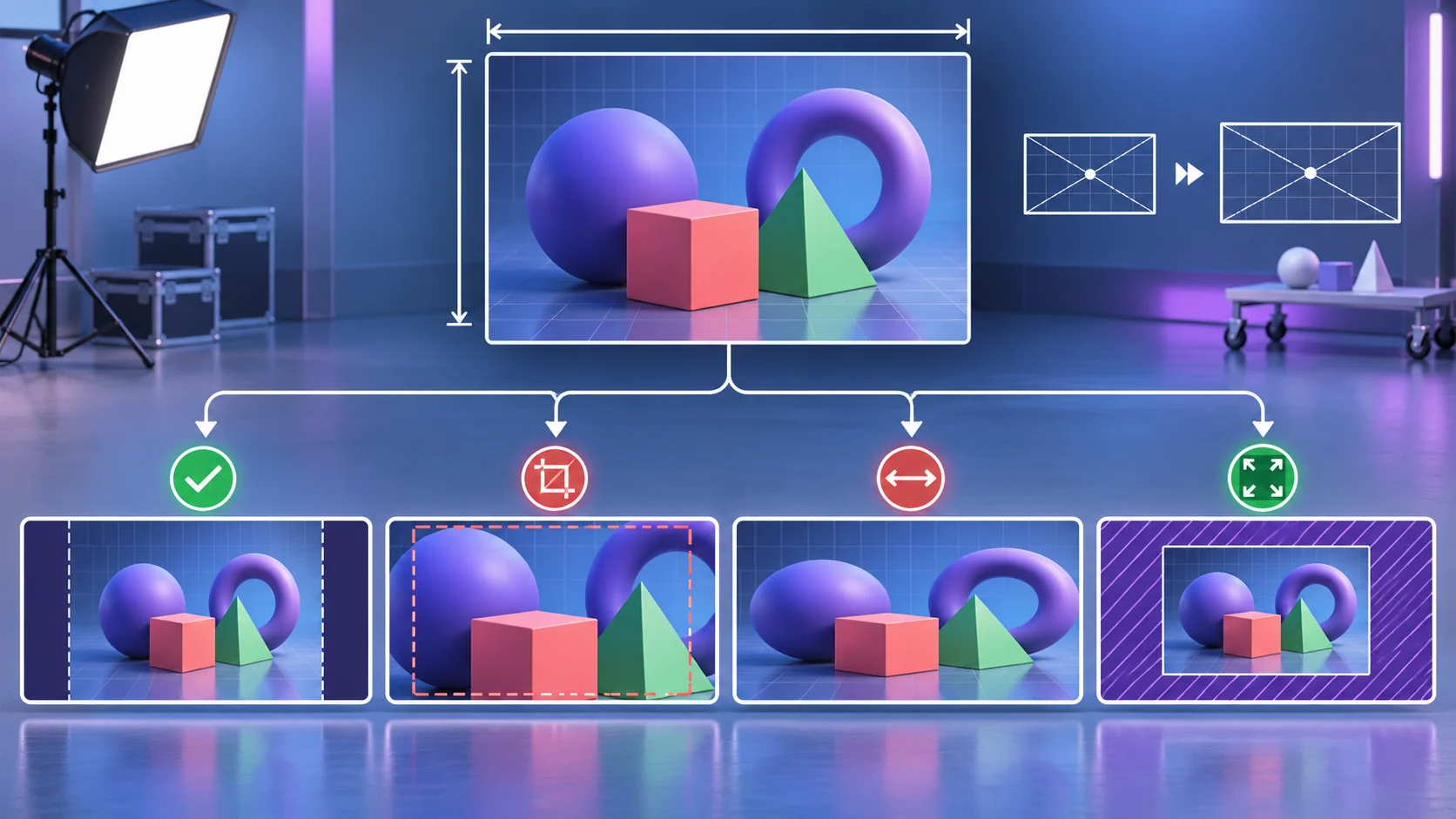
An image has an aspect ratio: width divided by height. If a 3:2 photograph must become a 1:1 square, the original proportions cannot fill the square completely unless some pixels are cropped, empty space is added or the image is distorted.
PDFStack exposes those choices instead of hiding them. The best option depends on whether preserving every source pixel, filling the destination or meeting an exact marketplace canvas is most important.
Fit preserves the complete image
Fit scales the source proportionally so it stays inside the requested width and height. The output dimensions follow the fitted image rather than forcing a larger exact canvas, so the complete source remains visible without distortion.
Use Fit for galleries, editorial images and mixed-orientation batches where seeing the entire frame matters more than producing identical rectangles.
Fill and Crop occupies the complete frame
Fill/Crop creates the requested width and height, scales the source to cover it, and removes excess pixels from the sides or top and bottom. The current implementation uses a centered crop.
This works well for uniform cards and square product thumbnails when the subject is centered. It can cut off a face or product near an edge, so preview a representative image and separate off-center subjects for individual treatment.
- ✓The output dimensions are exact.
- ✓Source proportions remain correct.
- ✓Some edge content can be removed.
- ✓The crop is centered rather than manually positioned.
Stretch forces the rectangle
Stretch maps the entire source directly into the requested width and height. Nothing is cropped and no padding is added, but the aspect ratio can change. Circles can become ovals and people or products can appear unnaturally wide or narrow.
Use Stretch only when the source and target ratios already match closely or when intentional distortion is acceptable. It is rarely the best choice for photography.
Pad adds a background around the image
Pad creates the exact target canvas, fits the complete image inside it, and fills the remaining area with the selected background color. This is useful for ecommerce requirements where every file must be square but the full product must remain visible.
Padding is baked into the exported pixels. Choose the background deliberately, especially for JPG, which has no alpha transparency. For a transparent outer area, use a PNG or WebP workflow that does not require an opaque padding fill.
Verify the output, not only the numbers
Correct pixel dimensions do not guarantee a useful composition. Inspect subject position, edge clearance, background color, sharpness and important text. For automated batches, use consistent source framing or split exceptions into another pass.
Avoid enlarging a small source far beyond its native dimensions. Resampling can create more pixels, but it cannot invent the original fine detail that was never captured.
Frequently asked questions
Which mode avoids distortion and cropping?
Fit preserves the complete image and its proportions. Pad also preserves both while placing the image on an exact-size canvas.
Can I move the crop area?
The current Fill/Crop behavior uses a centered crop; it does not expose manual focal-point positioning.