

Device guide · 8 min read
How to Convert HEIC to PDF on iPhone, Windows and Mac
Follow a practical browser workflow for converting supported iPhone HEIC photos into PDF on mobile, Windows, and Mac.
Published and technically reviewed by the PDFStack Team · October 14, 2026
Why iPhones create HEIC photos
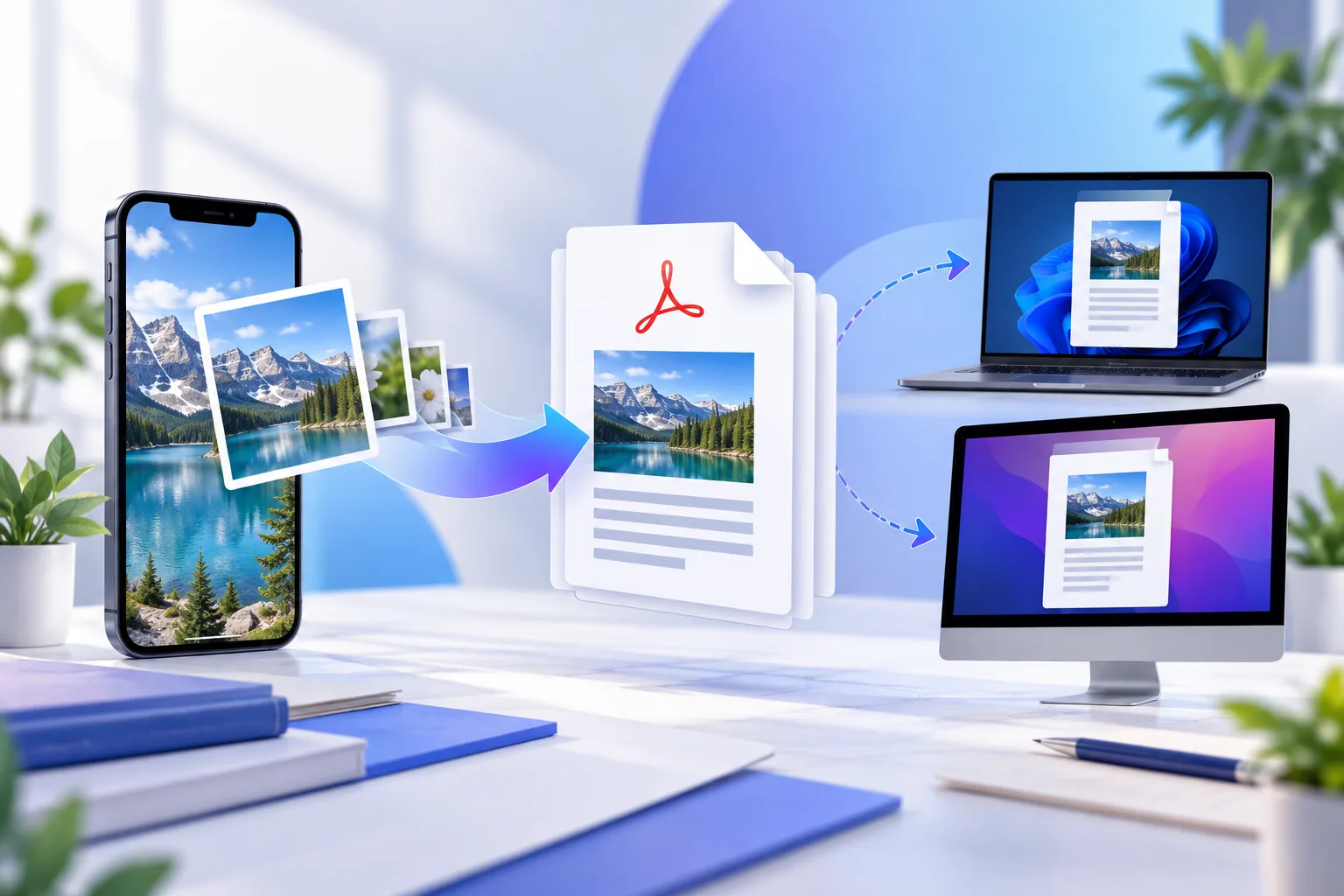
Compatible Apple devices commonly store camera photos as HEIC because HEVC-based image coding can keep high visual detail at a smaller size than many older formats. HEIC is a particular use of the broader HEIF container, so a .heif filename does not guarantee that every decoder supports the codec inside it.
PDF is useful when several photos must be submitted, printed, emailed, or reviewed in a fixed page order. Conversion does not make the original photo more detailed; it packages a decoded and re-encoded image on a document page.
Convert on iPhone or iPad
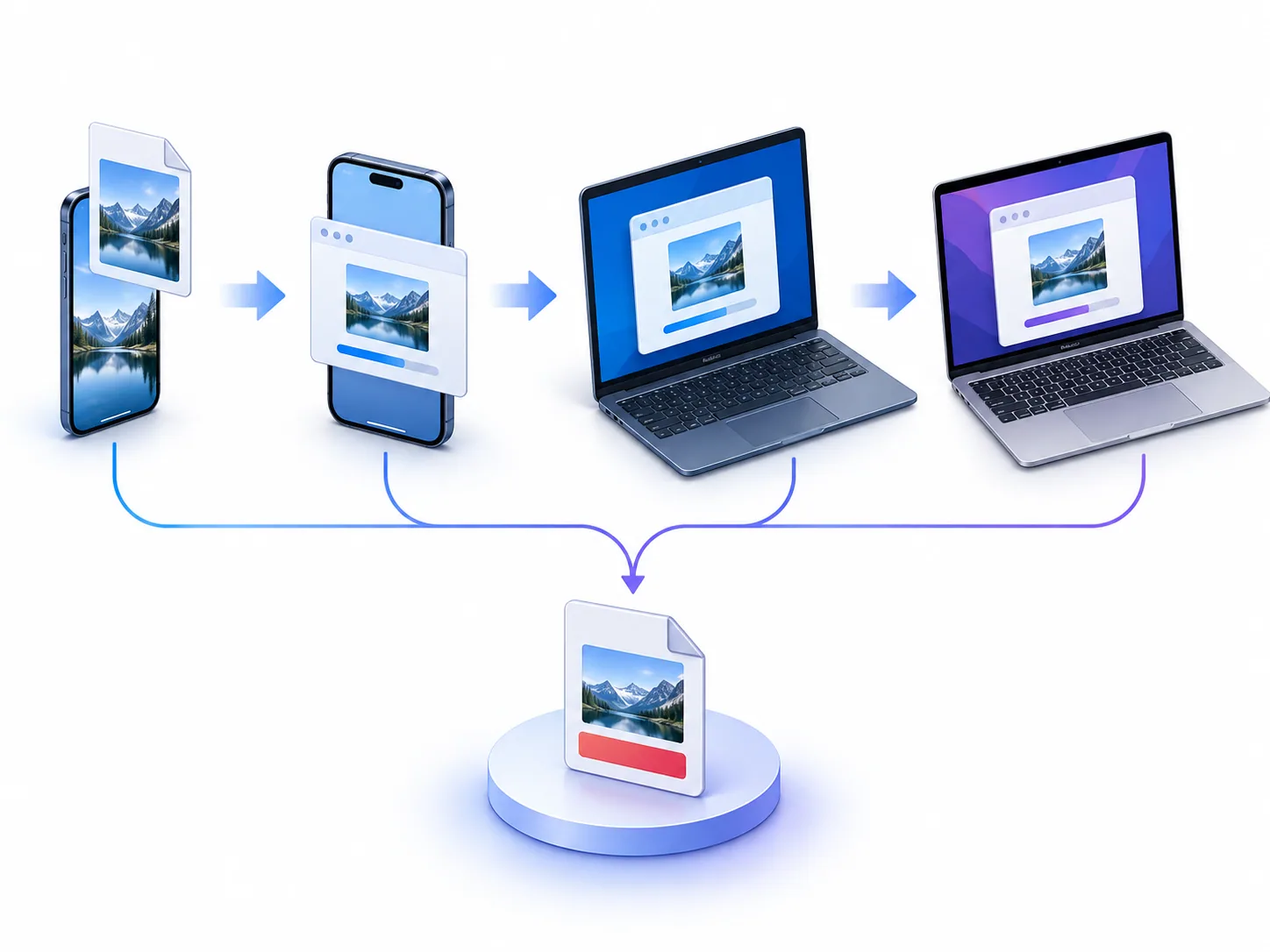
Open PDFStack in a modern browser, choose the HEIC photos, and wait while the in-page decoder prepares thumbnails. Review every preview because Live Photo motion, bursts, auxiliary depth images, and additional frames are not added as separate PDF pages by the current converter.
Arrange the photos, rotate a decoded preview if necessary, and choose A4 or Letter pages, orientation, margins, fit, background, and combined or separate output. Start conversion, keep the tab open, then use the result card to download the real PDF output.
- ✓Choose a smaller batch if the mobile browser reports memory pressure.
- ✓Check portrait photos for correct orientation before converting.
- ✓Use combined output when the recipient expects one ordered document.
- ✓Retain the original HEIC files as photo masters.
Convert on Windows
Windows applications do not all include the same HEIC/HEVC codecs. A browser may therefore fail to display a HEIC file natively even when another installed app can open it. PDFStack uses its packaged browser decoder instead of relying only on native image support.
If a photo fails, it may use an unsupported HEIF codec or container feature, be damaged, or exceed practical browser memory. Changing only the filename extension does not change the encoded content. Export a compatible JPEG from a trusted photo application when the browser decoder cannot read the source.
Convert on Mac
Recent macOS photo tools can often open common iPhone HEIC files, but the PDFStack workflow is useful when you want ordered multi-photo output and explicit page settings without installing a separate converter. The decoding and PDF creation steps run in the active browser tab.
Compare the downloaded PDF with the source in Preview or another trusted viewer. Confirm page order, orientation, margins, color appearance, fine detail, and total page count before sharing.
Troubleshoot mobile and browser errors
A blank or failed preview is a decoding failure, not a successful conversion. Try a current browser, reduce the number of large photos, close memory-heavy tabs, and verify that the source opens in the device photo library. Corrupted files and unsupported HEIF codec variants require a different decoder or a prior export.
Downloads on mobile may appear in the browser download list or Files app rather than Photos. The converter does not upload images to PDFStack servers, but the browser must still have enough memory to hold decoded JPEG pixels and the generated PDF.
Frequently asked questions
Does the same workflow work on every device?
The interface is responsive, but successful conversion depends on browser features, decoder support for the file variant, and available memory.
Where is the PDF saved on iPhone?
The browser controls the download destination, commonly the Files app or its download list.