

Photo workflow · 8 min read
How to Combine Multiple HEIC Photos into One PDF Document
Arrange supported HEIC photos, choose page layout and margins, and create one ordered multipage PDF for sharing or printing.
Published and technically reviewed by the PDFStack Team · October 14, 2026

Plan the photo document before converting
Decide what each page should communicate. A property inspection might begin with the exterior and proceed room by room; an expense record might follow date order; a school submission might place the overview before detail photographs.
Rename sources clearly when practical, but use the visual thumbnails to verify order. PDFStack prevents an identical name-size-modified-time selection from being added twice, while still allowing genuinely different files.
Select, preview, and arrange photos
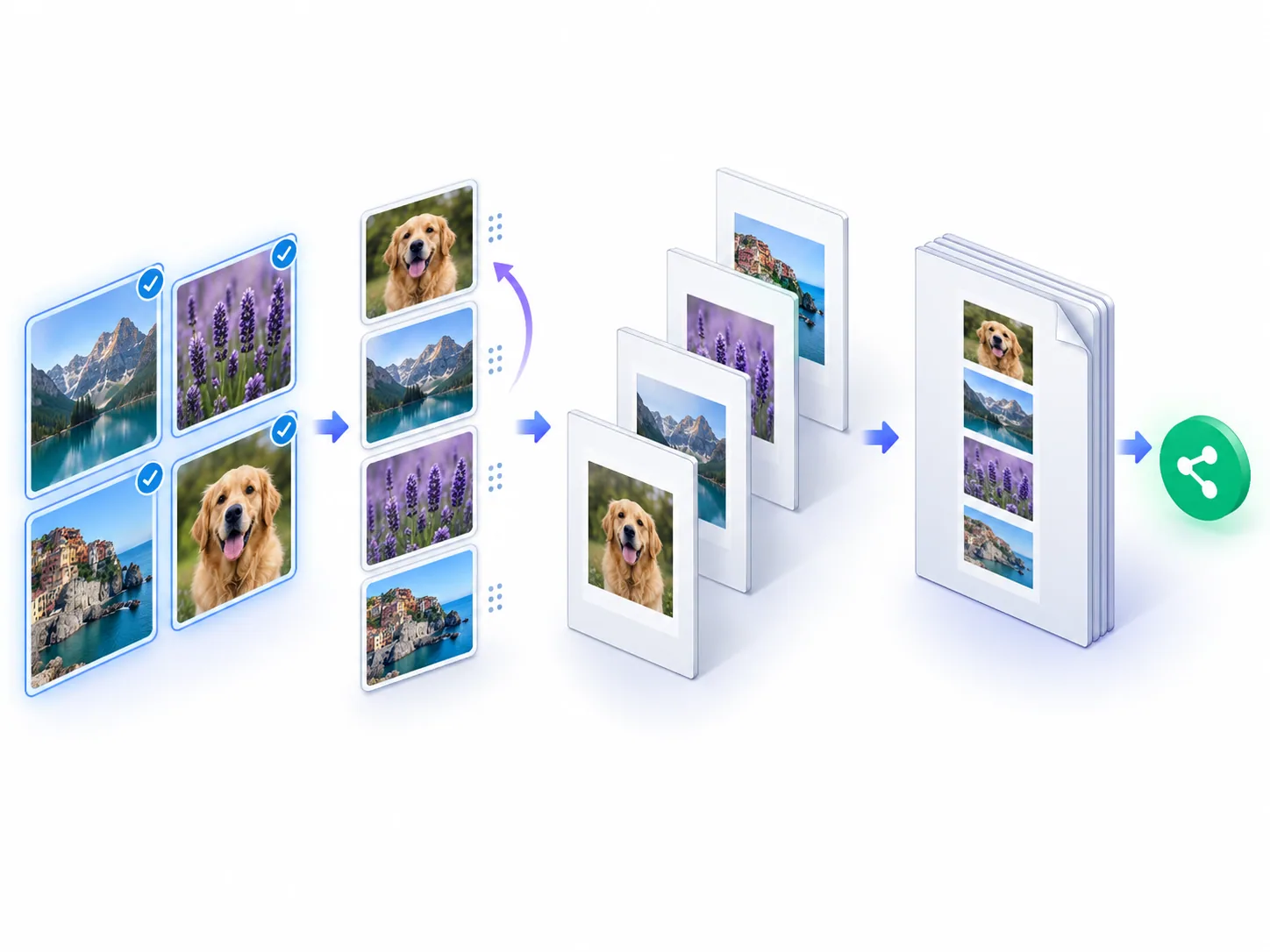
Choose up to 20 HEIC or HEIF files, each up to 20 MB. Each accepted file is decoded into a JPEG preview. Files that cannot be decoded stay visible with a specific error rather than silently disappearing.
Use move-up and move-down controls to set page order; these controls are keyboard and touch accessible. Use quarter-turn rotation only when the decoded preview needs correction. The selected order is used for combined PDF pages and separate output downloads.
- ✓Confirm every expected filename is present.
- ✓Review the dimensions reported after decoding.
- ✓Remove failures or retry with a compatible export.
- ✓Use smaller batches on memory-constrained mobile devices.
Choose page layout and image fit
A4 and US Letter are available in portrait or landscape. Margins can be none, narrow, or standard. Contain fits the whole photo without cropping; Cover fills the available rectangle and crops excess edges.
White and light-gray page backgrounds are available. Background choice affects empty margins and transparent decoded pixels, though ordinary HEIC camera photos usually do not contain transparency.
Create one PDF or separate PDFs
Combined mode creates one page per successfully decoded photo in the arranged order. Separate mode creates one one-page PDF per photo and downloads them individually; ZIP output is not currently provided.
During conversion, PDFStack reports real phases: validation, decoding availability checks, page-layout preparation, PDF creation, and download preparation. It does not show a fabricated percentage.
Share, print, and verify
The result card reports the actual filename, page count, and byte size and provides a browser preview. Open the download and compare the first and last pages with the chosen order. Check orientation and any Cover cropping before emailing or printing.
For examples, combine photographed receipts into a single expense PDF, arrange whiteboard photos into meeting order, or package a sequence of inspection images. Avoid using the PDF as the only archive when original metadata or maximum editing quality matters.
Fix common multi-photo failures
If one file fails while others decode, remove or re-export only that file rather than losing the whole selection. Unsupported codecs, damaged containers, very large decoded dimensions, and low browser memory are common causes.
A retry is safe after returning to the workspace or choosing Convert more photos. The original files are not uploaded to PDFStack servers or stored by this browser-local workflow.
Frequently asked questions
Can I change the page order?
Yes. Arrange thumbnails before conversion; combined PDF pages follow that order.
Can I download a ZIP of separate PDFs?
No. Separate PDFs are downloaded individually in the current implementation.