

Presentation quality · 11 min read
How to Prepare PDF Pages for a High-Quality PowerPoint Presentation
Plan page ranges, aspect ratios, render quality, mixed page sizes, accessibility, and final checks before presenting a converted PDF deck.
Published and technically reviewed by the PDFStack Team ·
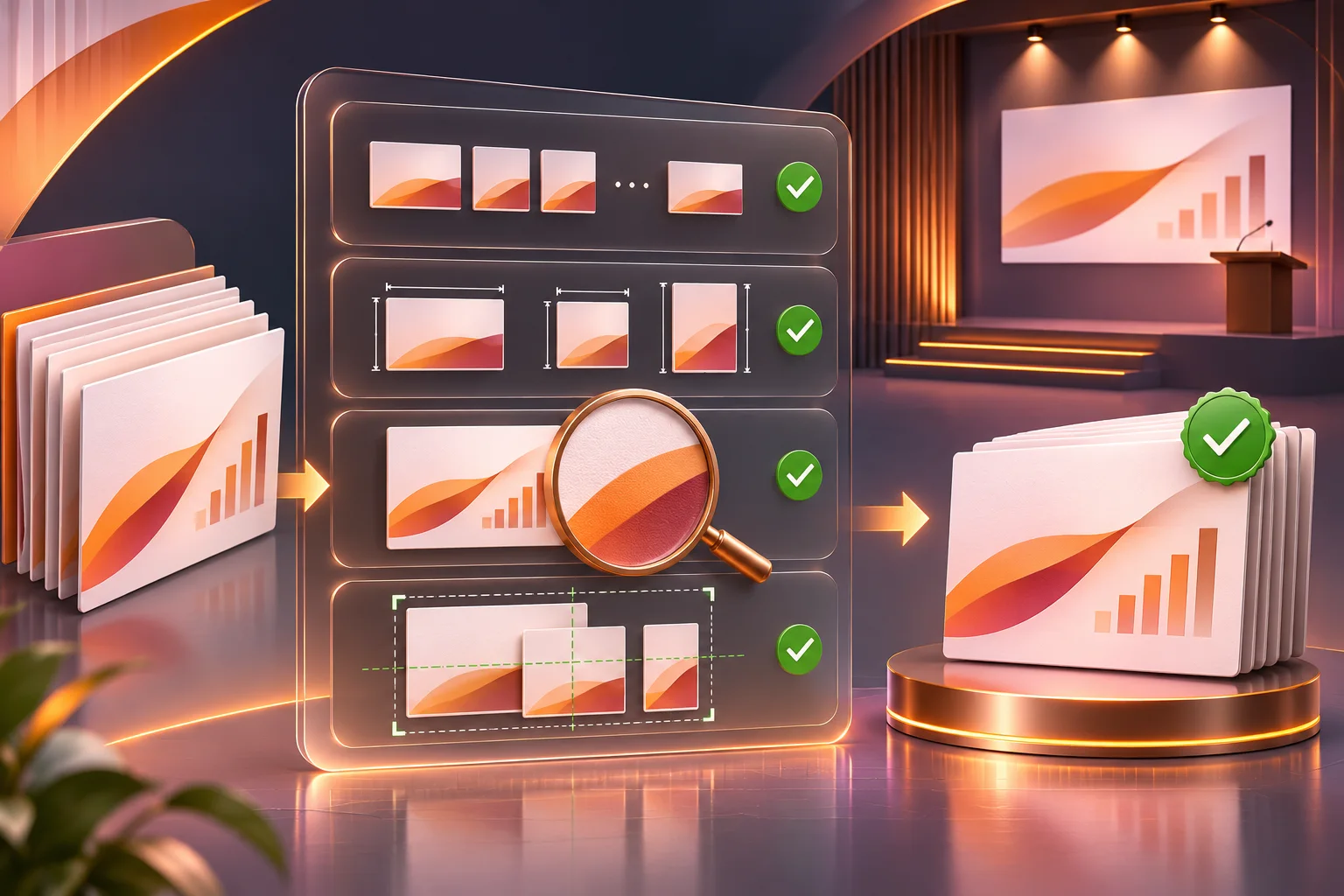
Start with the audience and display
A PDF that reads well on a laptop is not automatically presentation-ready. Projectors, meeting-room displays, video calls, and mobile screens make small type and dense tables harder to follow. Before converting, decide whether the deck is a page-by-page reference, a narrated presentation, or a visual appendix.
For a narrated presentation, select only the pages that support the spoken story. Move detailed evidence, legal language, and large tables to an appendix or distribute the original PDF separately. Conversion preserves density; it does not simplify a crowded page.
Control the deck aspect ratio with the first page
PowerPoint applies one slide size to every slide in a presentation. PDFStack derives the custom deck ratio from the first selected PDF page. Later pages are scaled proportionally to fit within that slide, which prevents stretching but can create margins around pages with another shape.
If the PDF begins with a portrait cover followed by landscape report pages, starting the conversion at page 2 can produce a landscape deck that fits the main content more naturally. If the portrait cover is required, consider creating it later as a native PowerPoint title slide.
- ✓Select the dominant page orientation first.
- ✓Do not expect individual slides to use different dimensions.
- ✓Review mixed portrait and landscape pages for surrounding margins.
- ✓Avoid changing slide size after conversion unless you plan to recheck every slide.
Select a purposeful page range
Use comma-separated pages and ranges such as 1,4-8,12. PDFStack removes duplicates, sorts valid selections into source order, and ignores numbers outside each PDF’s page count. A range that selects no valid page produces an error instead of an empty deck.
For batch conversion, the expression is applied to every source independently. If one PDF has five pages and another has twelve, the expression 2-7 creates four slides from the first file and six from the second. Review batch results individually because the same selection can represent different sections in different documents.
Choose render quality using actual page detail
Standard uses a 1.75× PDF.js rendering viewport. High uses 2.5× and is the default. The scale multiplies the page viewport before PNG creation, so High produces more pixels for the same source page and can make small labels or fine lines clearer when the slide is enlarged.
More pixels also require more browser memory and increase the presentation package size. Use Standard for drafts, quick internal review, or modest display sizes. Use High for final decks with detailed diagrams or small type, then inspect the result at the actual presentation zoom. Neither setting turns rasterized content into editable vectors.
Check the output like a presenter
Open the PPTX in the target application and advance through every slide. Look for incorrect rotation, clipped content, unreadable labels, excessive margins, unexpected blank pages, and inconsistent transitions between page proportions. Test full-screen presentation mode on the intended display when possible.
The generated presentation does not include speaker notes, slide transitions, embedded fonts, live hyperlinks, animations, or media copied from the PDF. Add presenter cues and navigation deliberately. If the presentation will be distributed, check file size and confirm that recipients can open the PPTX in their expected software.
Improve accessibility and communication
A full-page image can be difficult to navigate with a screen reader and may force low-vision users to magnify dense content. Add native slide titles, concise summaries, and alternative text that communicates the purpose of each meaningful page image. Repeat essential text as actual slide text when the image contains critical instructions or conclusions.
Use color and visual emphasis carefully when adding overlays. Do not cover source information without checking the result at presentation size. For an accessible final deliverable, use PowerPoint’s checker, confirm reading order for added objects, and provide the original accessible PDF or another equivalent format when appropriate.
Use a final preflight checklist
A dependable deck has the expected number of slides, an intentional first-page ratio, readable detail, correct page order, and no unexpected margins or cropping. It also has the notes, titles, navigation, and accessibility improvements required by the audience.
Keep a clean copy of the generated deck before manual edits. If a later design change causes problems, you can compare it with the original visual conversion instead of repeating the entire workflow.
Frequently asked questions
Why do some converted pages have margins?
All slides share the ratio of the first selected page. Pages with different proportions are fitted without stretching, leaving unused space around the image.
Which quality should I choose for a projector?
High is safer for fine detail, but test the actual deck on the intended display. Standard may be sufficient for simple pages and creates smaller files.