

Step-by-step guide · 9 min read
How to Convert PDF to PowerPoint Without Rebuilding Every Slide
Turn selected PDF pages into a presentation-ready PPTX, choose the right render quality, and verify the slide deck before presenting.
Published and technically reviewed by the PDFStack Team ·
Know what the conversion creates
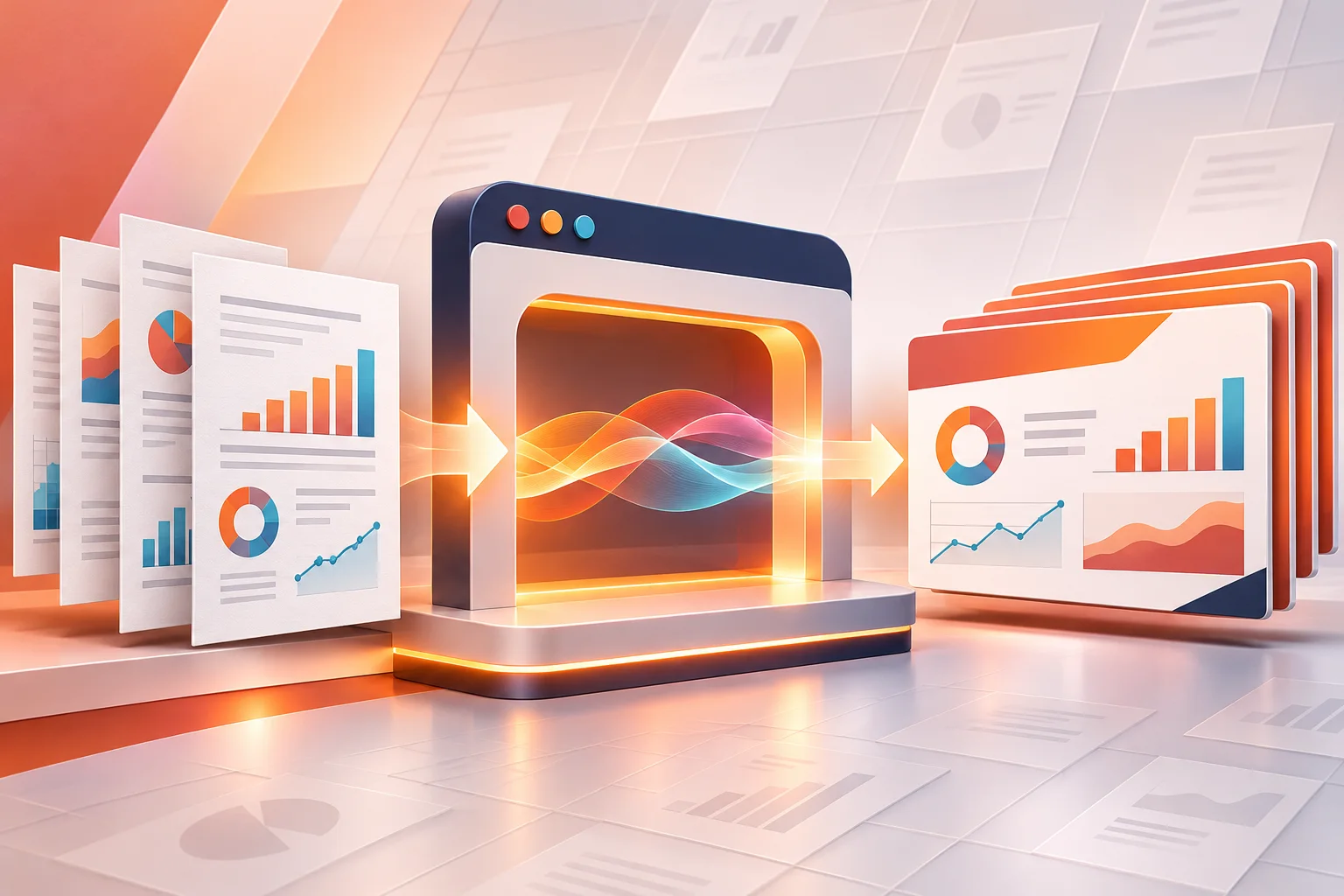
PDF and PowerPoint solve different problems. A PDF preserves a fixed page for reading, printing, and distribution. A PowerPoint presentation is a sequence of same-sized slides that can contain pictures, text boxes, charts, media, notes, and animations.
PDFStack uses a visual conversion path: it renders each selected PDF page as a PNG and places that image on a blank PowerPoint slide. The generated PPTX is a real PresentationML package with a presentation part, slide master, blank layout, theme, slide relationships, and image media. The visible page is preserved, but its text and shapes are not reconstructed as native editable objects.
Prepare the source PDF
Open the PDF and check page order, orientation, crop boundaries, and small text before conversion. Remove pages that should not appear, or record the page range you need. If the document mixes portrait appendices with landscape report pages, decide which page should establish the deck proportions.
The first selected page controls the generated slide aspect ratio. PowerPoint uses one slide size throughout a presentation, so later pages with different proportions are scaled to fit inside that common slide without distortion. They may have margins around the page image.
- ✓Put the preferred deck proportion on the first selected page.
- ✓Check that rotated pages display correctly in the source viewer.
- ✓Use a page range to omit covers, appendices, or blank pages.
- ✓Keep the PDF as the authoritative source document.
Choose files, pages, and quality
Open PDF to PowerPoint and add one PDF or a batch. Each PDF becomes its own PPTX file. Enter a page expression such as 1,3-5 to export page 1 followed by pages 3, 4, and 5; leave the field blank to include every page. The same expression is applied independently to every PDF in a batch, and out-of-range page numbers are ignored.
High is the default and renders each selected page with a 2.5× PDF.js viewport. Standard uses 1.75×. High supplies more pixels for small type, thin rules, and detailed diagrams, but it uses more canvas memory and usually produces a larger presentation. Standard is useful for quick review decks and memory-constrained devices.
Convert and inspect the PPTX
Start conversion and keep the browser tab open while pages are rendered sequentially. The result list reports the number of slides and generated file size. Preview displays the first rendered slide image; use it to catch obvious cropping, rotation, or quality problems before downloading.
Download an individual PPTX or package several completed presentations in a ZIP. Open the file in the version of PowerPoint or compatible presentation software that will be used at the event. Confirm the slide count, sequence, page fit, small text, charts, and any margins caused by mixed page proportions.
Run a realistic presentation check
Consider a twelve-page quarterly report where pages 2 through 7 contain the executive presentation and pages 8 through 12 contain detailed tables. Selecting 2-7 creates a six-slide deck without asking the presenter to skip appendix slides. If page 2 is landscape, the deck follows that landscape ratio.
A successful conversion does not add speaker notes, transitions, editable charts, or live PDF links. Add those manually in PowerPoint when they are needed. If a recipient must search, select, or reuse the source text, share the original PDF alongside the visual presentation or rebuild the important slides with native PowerPoint elements.
Protect quality and accessibility
Image-based slides can reproduce a page visually while remaining difficult for screen-reader users. Microsoft recommends adding concise alt text to meaningful visuals and avoiding images of text as the only way to communicate important information. For an accessible presentation, summarize key page content in native slide text or speaker notes and add appropriate alternative text.
Keep the original PDF, the generated PPTX, and any manually enhanced accessible version as separate files. That makes it clear which file is the fixed source, which is the visual conversion, and which contains presenter-specific edits.
Frequently asked questions
Can I convert only part of a PDF?
Yes. Enter individual pages or ranges such as 1,3-5 before conversion.
Does each PDF in a batch become a separate presentation?
Yes. Every source PDF creates its own PPTX, and completed files can be downloaded together as a ZIP.