

Mapping guide · 8 min read
Map Excel Columns to PDF Form Fields Without Data Errors
Design headers, match field types, handle fixed values, and catch bad rows before generating hundreds of files.
Field names and headers are identifiers
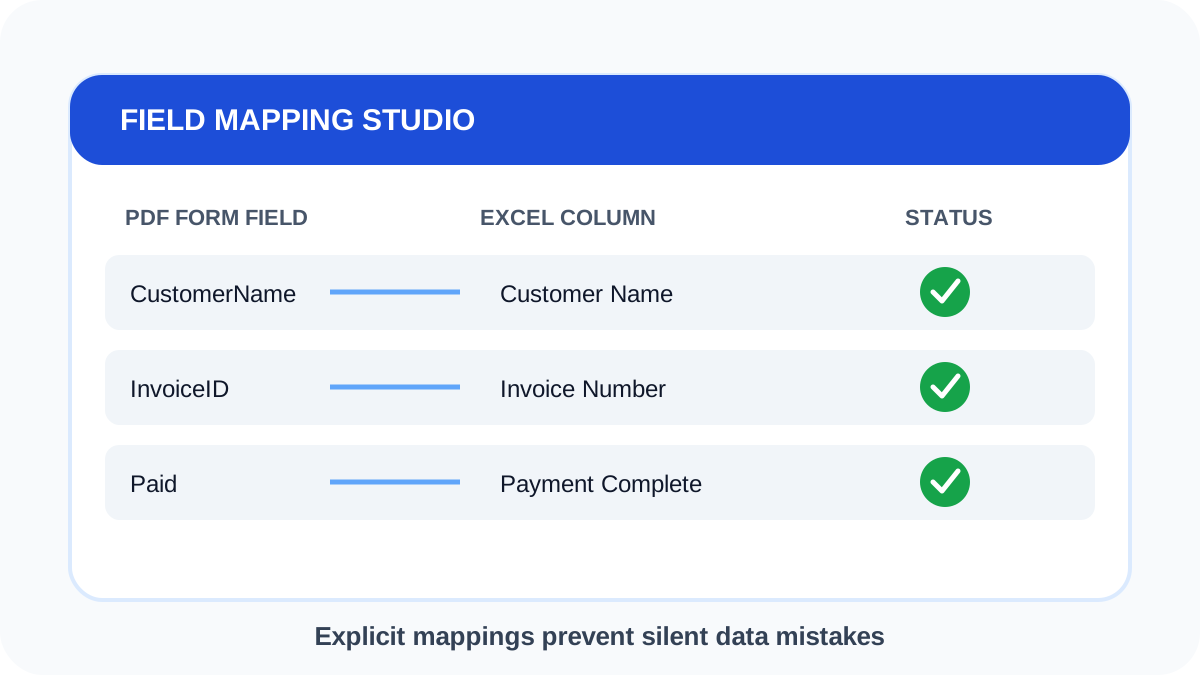
The visible label beside a PDF field may differ from its internal field name. Bulk filling uses the internal name. Clear, unique names are easier to map than repeated names such as Text1 or Field2.
Header matching ignores common punctuation and spacing differences, but you should still review the proposed mapping. Two similar business concepts—such as BillingName and ShippingName—must not be treated as interchangeable.
Respect each field type
Text fields accept ordinary spreadsheet values. Checkboxes need an unambiguous true or false value. Dropdowns and radio groups accept only options already defined by the PDF form. A value that looks correct but differs in capitalization or spacing may be rejected.
- Use consistent date and number formats.
- Avoid merged header cells and blank header names.
- Keep option values identical to the PDF choices.
- Use a fixed value only when it is correct for every record.
Test boundary records
Preview more than the first row. Check the longest name, a row with optional blanks, a row containing non-English characters, and the final record. This exposes clipping, unsupported option values, and filename collisions early.
If a required value is missing, correct the spreadsheet or intentionally revise the mapping. Do not fill a required field with misleading placeholder text merely to make the batch complete.
Questions about bulk PDF forms
Why did automatic mapping miss a column?
The spreadsheet header may not match the PDF field name closely enough. Select the correct source manually.
Why can a dropdown row fail?
PDF dropdowns accept their configured option values. The spreadsheet value must match one of those options.