

Complete workflow · 7 min read
How to Fill PDF Forms from Excel in Bulk
Prepare a fillable PDF and spreadsheet, map each column once, review records, and generate a dependable batch.
Start with two structured sources
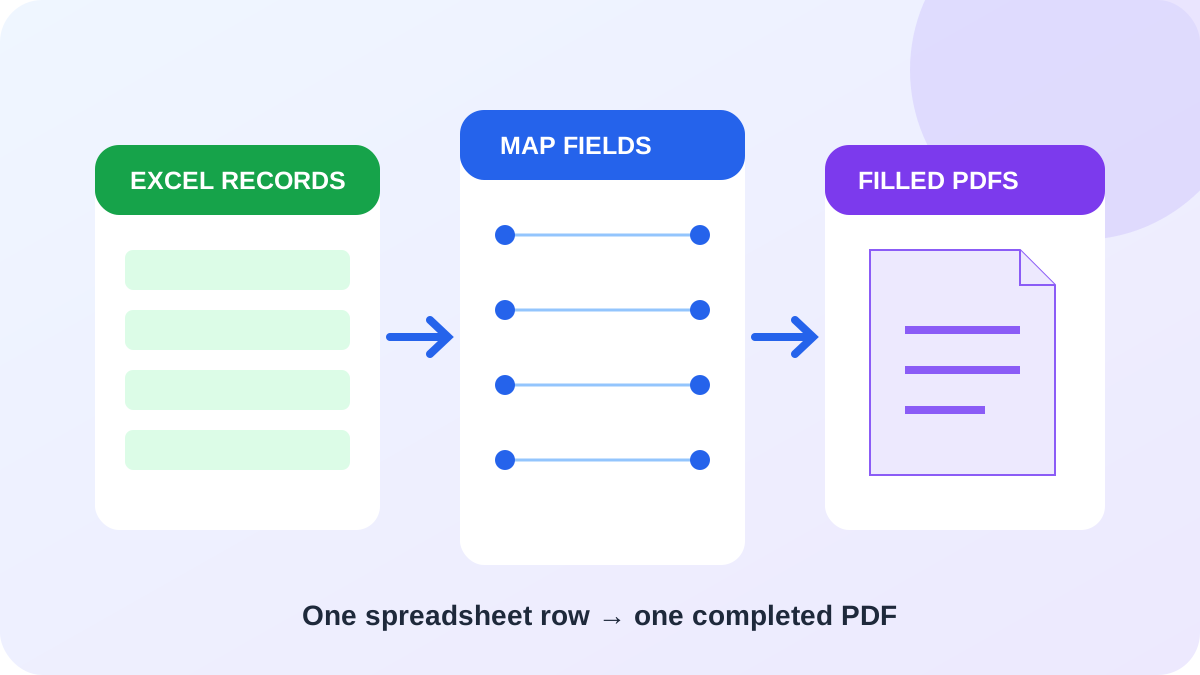
A bulk-fill workflow combines one PDF template with many spreadsheet records. The PDF must contain named interactive AcroForm fields. The spreadsheet should have one header row and one record per output document.
Use short, stable column headers such as CustomerName, InvoiceID, and DueDate. If those headers match the PDF field names, automatic mapping can connect them immediately; otherwise, review each mapping manually.
Map once, then inspect real records
Connect every required PDF field to a spreadsheet column. A fixed-value mapping is useful when every document shares the same department, year, or notice text. Preview a typical row and at least one row containing blank or unusual data before starting the batch.
- Confirm required fields are mapped.
- Check checkbox values such as Yes/No or True/False.
- Verify dropdown and radio values match allowed options exactly.
- Choose a unique column for output filenames.
Generate and verify the batch
Generate one PDF for each selected row. Failed records should remain separate instead of stopping valid records from completing. Open several outputs from the ZIP and verify names, special characters, checkboxes, page appearance, and the first and last selected rows.
Keep the source PDF and spreadsheet as the authoritative inputs. If completed fields should not be edited, choose flattened output and confirm the visual result in the PDF viewer used by recipients.
Questions about bulk PDF forms
Does each Excel row create a separate PDF?
Yes. The selected row range produces one completed PDF per nonblank record.
Can I use CSV instead of Excel?
Yes. CSV, XLS, and XLSX sources are supported by this workflow.