

Batch workflow · 8 min read
How to Password Protect Multiple PDF Files as a Controlled Batch
Apply one opening password to several PDFs, track each file independently, handle failures, and verify every protected output before distribution.
Published and reviewed by the PDFStack Team ·
When a batch is the right workflow
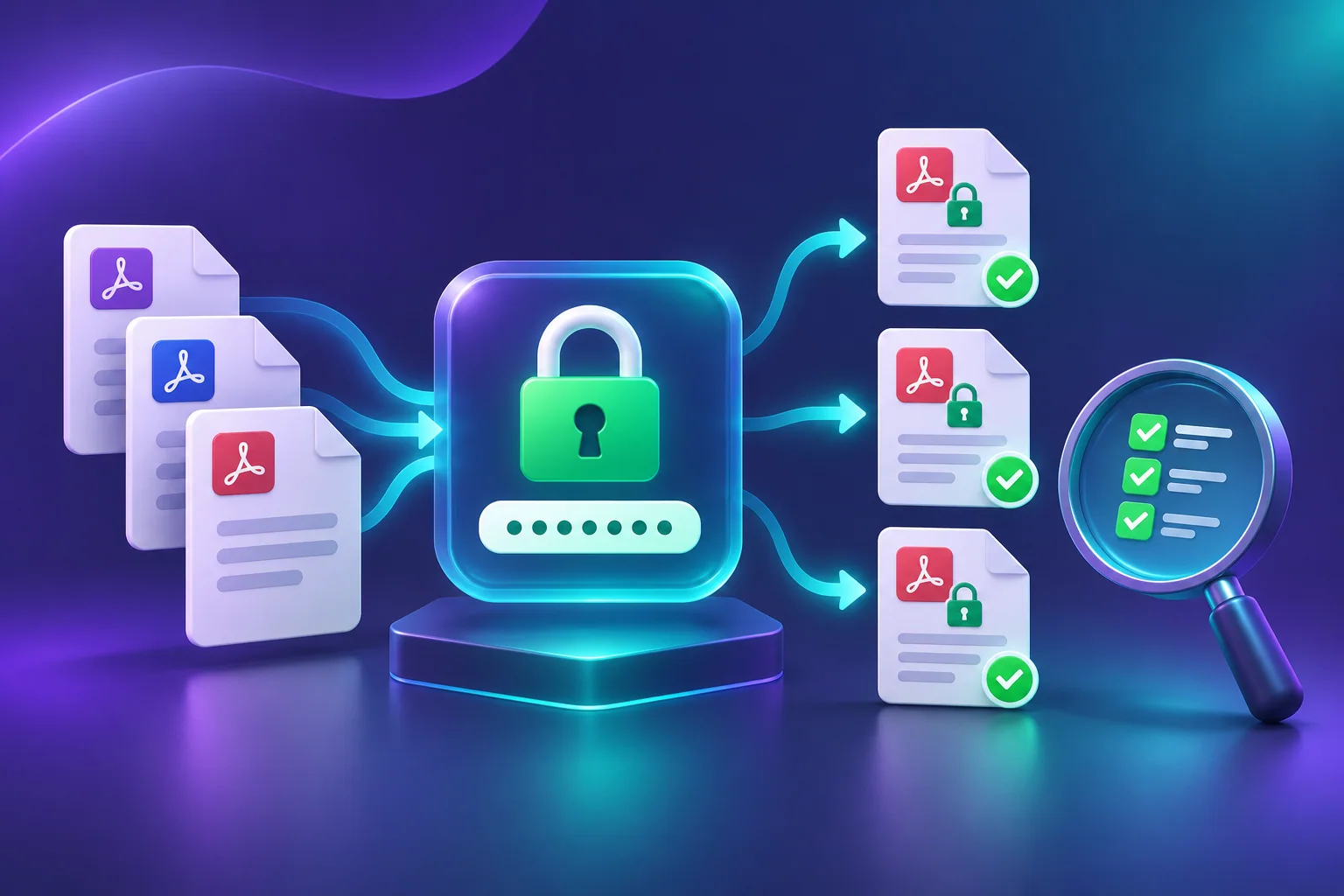
Batch protection is useful when a defined group of reports, statements, client documents, or archive exports needs the same opening password. PDFStack submits each file as a separate processing job, so one failed item does not have to erase the successful results.
A shared password also creates shared risk: anyone who receives it can open every completed file in that batch. Use separate batches when recipients, confidentiality levels, retention rules, or access periods differ.
Prepare the batch before uploading
Create a source checklist with the approved filename, expected page count, intended recipient, and confidentiality classification for every PDF. Remove drafts and duplicates before starting. Already encrypted PDFs must be unlocked with the known password first.
Choose one unique password that is appropriate for the whole group. Do not encode a client name, account number, birthday, or filename into a predictable password. Record the password in the approved password manager and document who is authorized to receive it.
- Separate files by recipient and sensitivity.
- Confirm every source is the approved version.
- Remove already encrypted files from the batch.
- Record expected file and page counts.
- Plan a separate password-delivery channel.
Run and monitor each protection job
Add the PDFs, inspect the file list, enter and confirm the shared password, and start protection. The workspace reports upload, securing, completed, and failed states for individual files. Keep the page open until every item reaches a terminal state.
Download completed files individually or use the ZIP action when it is available for the batch. A ZIP download is packaging for convenience; it is not an additional security boundary. Retry only failed items after reading their error messages, rather than rerunning completed files without a reason.
Reconcile the output before distribution
Compare the output list with the original source checklist. Test at least one incorrect password and the correct password against every protected file, not just the first item. Confirm filenames, page counts, visible content, and any forms or links that remain important.
Store or delete downloaded outputs according to the relevant policy. Communicate the password separately, record delivery where required, and retain the unprotected originals only in an appropriately controlled location.
Frequently asked questions
Can each PDF use a different password in the current batch studio?
No. The current Protect PDF batch studio applies one opening password to the selected batch. Create separate batches when passwords must differ.
Does one failed file invalidate completed files?
No. File jobs are tracked separately, so completed outputs remain available while failed items can be reviewed or retried.