

Resolution and compression · 10 min read
PDF to JPG Resolution, Render Scale and Quality Explained
Separate page-render resolution from JPEG compression quality and choose settings for thumbnails, screens, presentations and detailed review.
Published and reviewed by the PDFStack Team ·
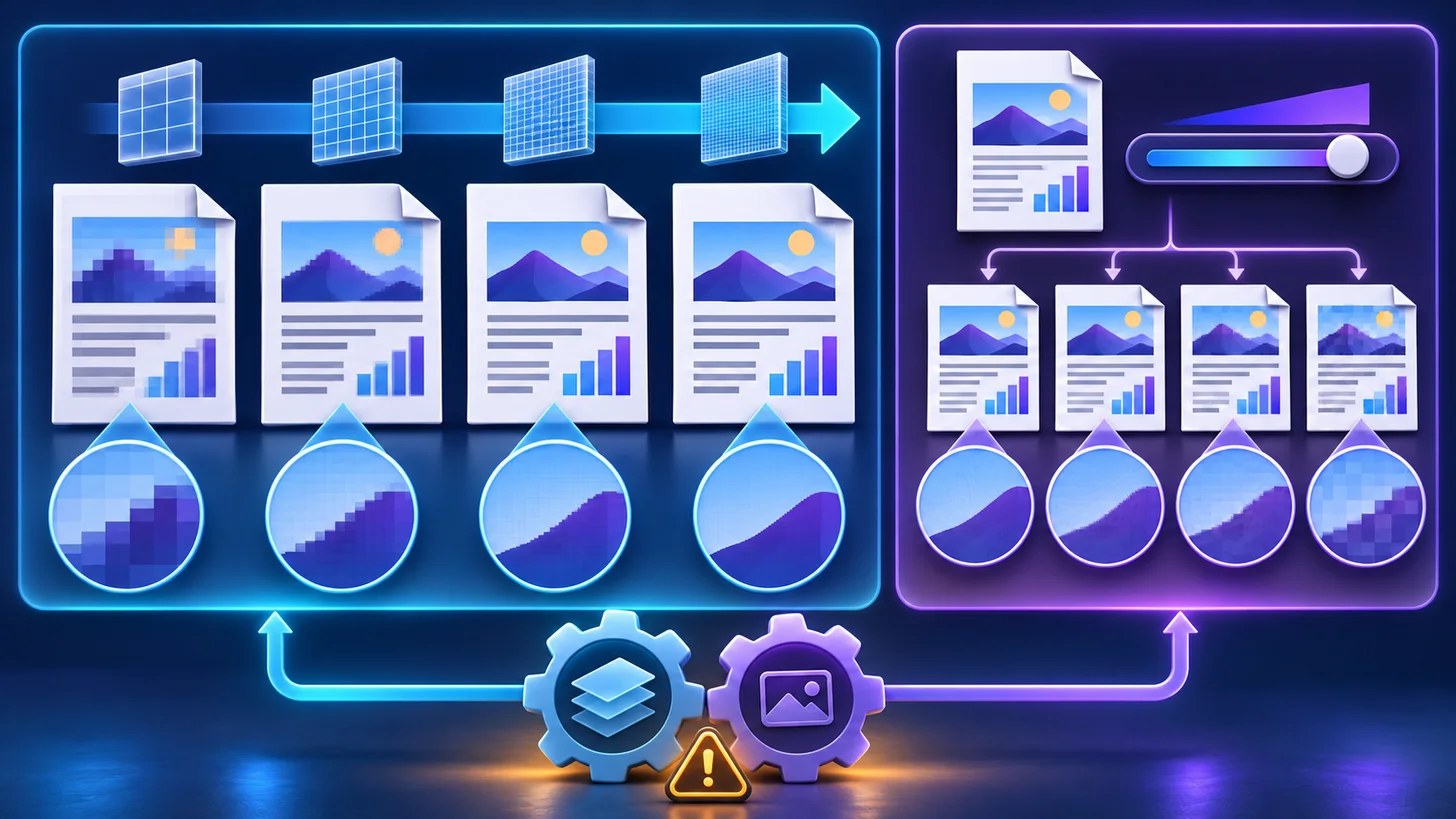
Resolution and JPEG quality are not the same setting
Resolution determines how many pixels describe the page. JPEG quality determines how aggressively those pixels are compressed. A large low-quality JPG can contain many pixels with visible artifacts, while a small high-quality JPG can remain clean but lack enough pixels for enlargement.
PDFStack exposes render scale because browser image workflows ultimately use pixel dimensions. Labels such as high resolution are only useful when connected to the final image width, height and display size.
How 1× through 4× scale changes the workload
A PDF.js viewport is multiplied by the selected scale before the page is painted to canvas. Doubling scale doubles both width and height, which approximately quadruples the pixel workload. Moving from 1× to 4× creates sixteen times the pixel area for the same page.
More pixels can preserve finer rendered detail, but they increase canvas memory, conversion time and output size. On a phone or memory-constrained browser, a long 4× batch can be less reliable than processing smaller groups or using a lower scale.
- 1×: quick previews and small thumbnails.
- 2×: routine screen and sharing workflows.
- 3×: more room for small type and detailed graphics.
- 4×: demanding output when the destination and device benefit from it.
- Always judge a representative page in the real destination.
Choose quality by page content
Photographs, scans and textured backgrounds often compress efficiently as JPG. Small type, thin rules, charts and flat graphic areas make compression defects easier to notice. Start from a high quality setting for mixed documents and lower it only after comparing the visual result.
File size is content-dependent. Two pages rendered at identical dimensions and quality can differ greatly because a simple background compresses more easily than noise, fine texture or a detailed scan. The tool does not promise a target file size.
Why repeated JPG saves should be avoided
Every lossy re-encoding can introduce additional change. If a JPG output is too small or too compressed, return to the original PDF and render it again. Enlarging the existing JPG or saving it repeatedly cannot reconstruct the PDF’s original text and vector detail.
For workflows that need several delivery sizes, create a sufficiently detailed approved render from the PDF, then derive the necessary variants carefully. Keep the PDF as the authoritative source.
Use measurable checks
Record the selected scale, JPEG quality, pixel dimensions and resulting file size. Inspect small text at 100 percent, zoom into high-contrast edges, and view photographs for blocking or banding. Then test the image in the website, email, slide or application where it will actually appear.
This process is more reliable than treating one setting as universally best. The correct balance depends on content, device limits and the destination’s dimensions or upload constraints.
Frequently asked questions
Does 4× scale mean four times the total pixels?
No. It creates four times the width and four times the height of 1×—sixteen times the total pixel area.
Can higher JPEG quality fix a low render scale?
No. Compression quality cannot restore detail that was never rendered. Increase render scale from the source PDF when more pixels are needed.