

Complete conversion guide · 9 min read
How to Convert PDF to JPG Without Wasting Useful Quality
Choose pages, render scale and JPEG quality deliberately, inspect difficult page details, and download organized JPG results from one PDF or a batch.
Published and reviewed by the PDFStack Team ·
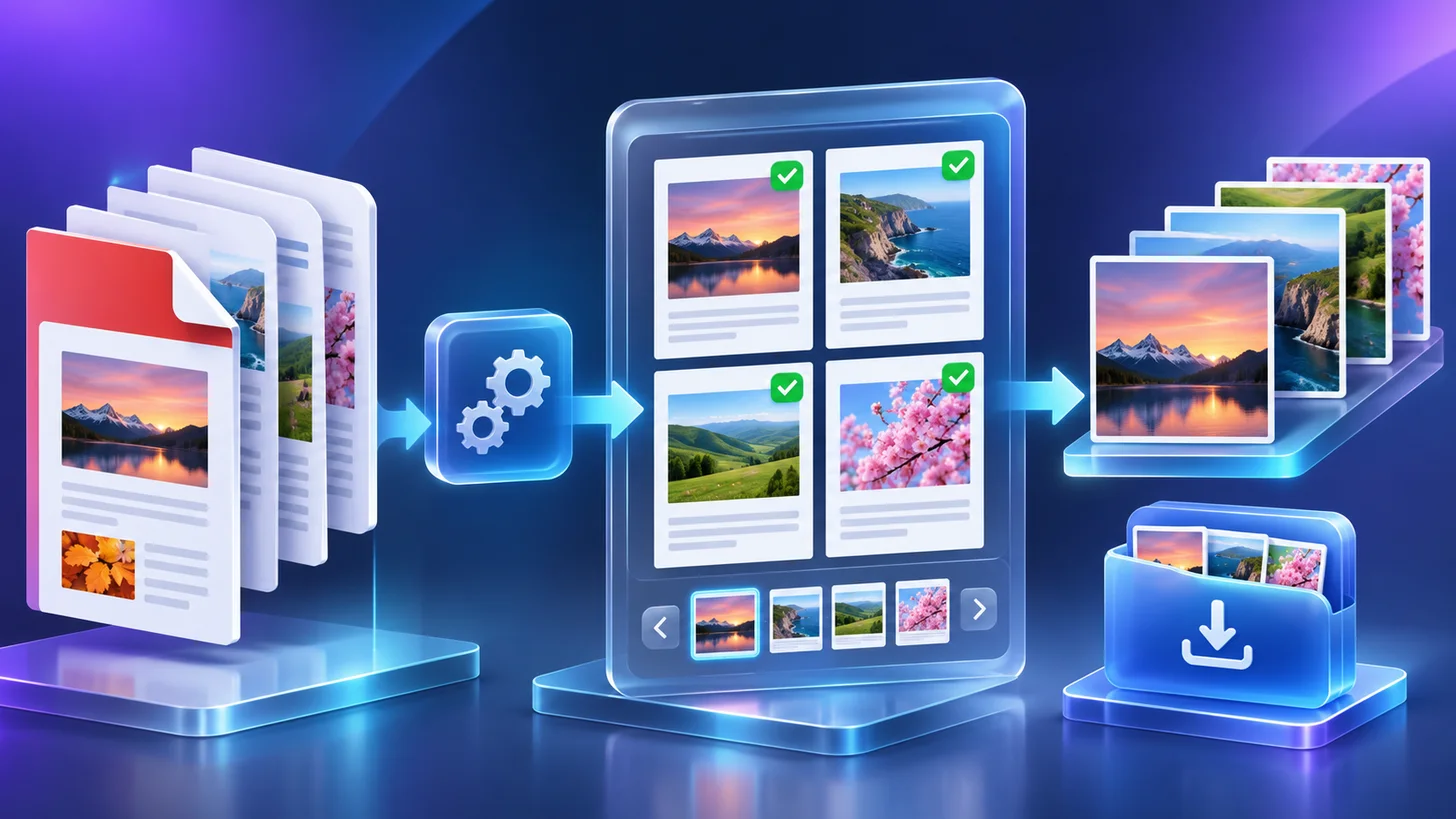
PDF pages must be rendered before they become JPG files
A PDF page can contain scalable text, vector paths, photographs, transparency, annotations and interactive elements. JPG cannot preserve those structures. A PDF-to-JPG converter first paints the visible page onto a fixed pixel canvas and then compresses those pixels with JPEG encoding.
The output is therefore a visual page image, not an editable reconstruction. Text is no longer selectable, links are not interactive, form controls become pixels, and vectors no longer scale indefinitely. Keep the source PDF whenever those properties matter.
Start with a representative page
Add the PDF in PDFStack and preview pages with the most demanding content: small typography, thin chart lines, gradients, photographs, reversed text, or unusual page sizes. Testing one difficult page is faster than discovering weak settings after a long batch has finished.
Choose only the pages the destination needs. The workspace can process all pages, a typed range, odd or even pages, or individually selected pages. Reducing unnecessary page output saves rendering time, browser memory and download size without lowering the quality of the pages you keep.
- Keep the original PDF as the master.
- Test a detail-heavy page before a large conversion.
- Choose the exact page scope.
- Inspect output at the size where it will be used.
- Return to the PDF for another render instead of repeatedly saving a JPG.
Set render scale before JPEG quality
Render scale controls the pixel dimensions created from the PDF page. PDFStack exposes 1×, 2×, 3× and 4×. At the same page geometry, 2× has twice the width and height of 1×, while 4× has four times each dimension and sixteen times the total pixel area.
JPEG quality controls compression after those pixels exist. A high quality value cannot recover letters or edges omitted by a low-resolution render. First create enough pixels for the destination, then choose the lowest JPEG compression level that still passes visual review.
Understand the quality trade-off
JPG is effective for photographs and continuous-tone artwork because it can reduce file size substantially. Around small text, diagrams and sharp color boundaries, lossy compression can introduce ringing, block patterns or softened edges. A 100-percent quality request asks the browser encoder for its highest setting; it does not make JPG lossless.
If a page is dominated by typography, interface screenshots or line art, compare a PNG export. PNG may be larger for photographic content, but it avoids adding JPEG compression artifacts to the rendered pixels.
Review and download the result
After processing, inspect the output dimensions and file size, then zoom into the page details most likely to fail. Verify that the page order and filenames match the source. When several pages or PDFs are ready, use the ZIP options to keep the download organized.
The conversion runs in the browser and does not require the selected PDF to be uploaded to PDFStack. Device memory still sets a practical limit, especially for long documents, unusually large pages and 4× rendering.
Frequently asked questions
What settings create the best PDF-to-JPG quality?
Use enough render scale for the destination, then select a high JPEG quality and inspect fine text, edges and photographs. The highest settings create larger files and use more memory.
Does 100-percent JPG quality make the output lossless?
No. It requests the browser encoder’s maximum JPEG quality, but JPEG remains a lossy re-encoding of rendered page pixels.