

Page selection and batch workflow · 8 min read
Convert Selected PDF Pages to JPG and Organize a Batch
Export ranges, odd or even pages, or individual selections from one or several PDFs and package the reviewed JPG output cleanly.
Published and reviewed by the PDFStack Team ·
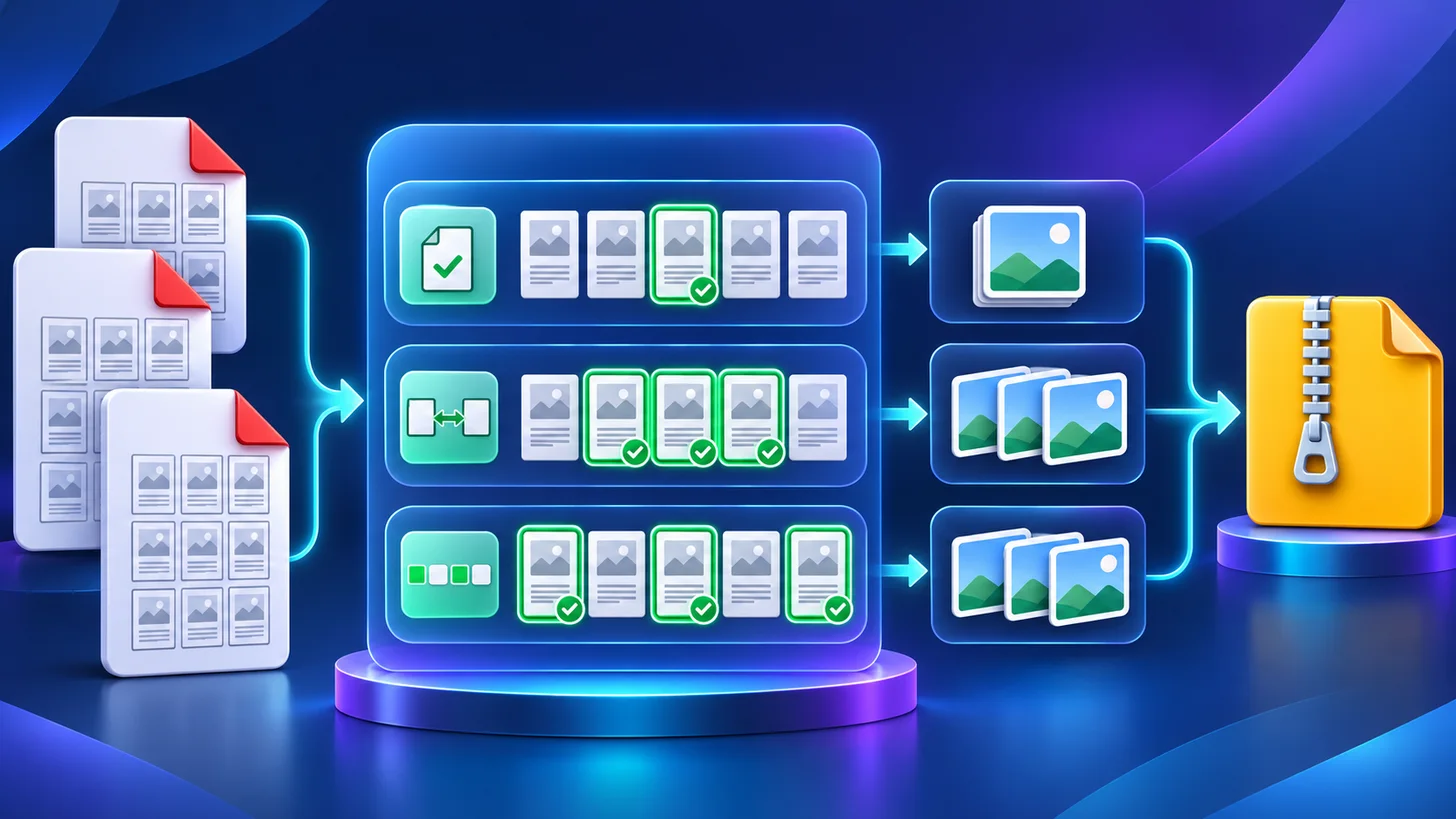
Page selection is part of output quality
Converting only the required pages avoids duplicate, blank, confidential or irrelevant images in the delivery. It also reduces memory use and makes the final download easier to review. Decide the page scope before processing rather than deleting files after a large export.
PDFStack supports all pages, odd pages, even pages, typed page ranges and individual page selections. A range can combine sequences and single pages, while page thumbnails help confirm the intended scope visually.
Use the selection mode that matches the document
Choose all pages for a complete visual copy. Use a range for chapters, appendices or a known group. Odd or even selection is useful for documents whose alternating pages have different roles. Individual selection is best when only a small set of nonconsecutive pages is required.
Page numbers refer to the source PDF’s page order in the converter. Printed numbers inside a document may differ when front matter uses Roman numerals or the PDF begins before page 1 printed on the page.
- Compare converter page numbers with visible printed numbers.
- Preview the first and last page of every range.
- Check rotated and unusually sized pages.
- Keep different output settings in separate batches.
- Exclude sensitive pages before conversion and download.
Plan batches around shared settings
A batch is efficient when the source PDFs can use the same image format, render scale and JPEG quality. If one document contains detailed engineering drawings and another contains photo-heavy pages, separate batches can produce more appropriate settings and simpler verification.
Browser-local processing means performance depends on the device. Long documents and high scales create large canvases. Test a smaller subset and avoid running unrelated memory-intensive tasks during a demanding batch.
Keep filenames and folders understandable
Each JPG should retain a clear connection to its source PDF and page number. Before sharing a ZIP, extract or inspect it and confirm that different documents remain distinguishable and page order sorts correctly.
Avoid putting unnecessary personal or confidential information into source filenames because those names can carry into downloaded assets. Rename source files safely before conversion when the delivery requires neutral naming.
Match JPG output to the destination
JPG works well for report previews, photo-heavy pages, slide assets, content-management uploads and messaging workflows that require images. It is not a replacement for the source PDF when searchable text, links, accessibility structure, forms, signatures or vectors must remain available.
For text-heavy pages, compare PNG before committing to JPG. For web publishing, also resize or serve responsive image variants rather than sending a 4× render to every screen.
Frequently asked questions
Can I convert only certain PDF pages to JPG?
Yes. Use individual selection, a typed range, or odd/even modes before processing.
Can several PDFs be converted in one batch?
Yes. Add multiple PDFs, apply the shared output settings, review the selected pages and download individual images or organized ZIP output.