

Document workflow · 8 min read
Turn Receipt, Form and Document Photos into a Reviewed PDF
Prepare phone photos, correct rotation and order, choose a readable page layout, and understand when OCR is still required.
Published and reviewed by the PDFStack Team ·
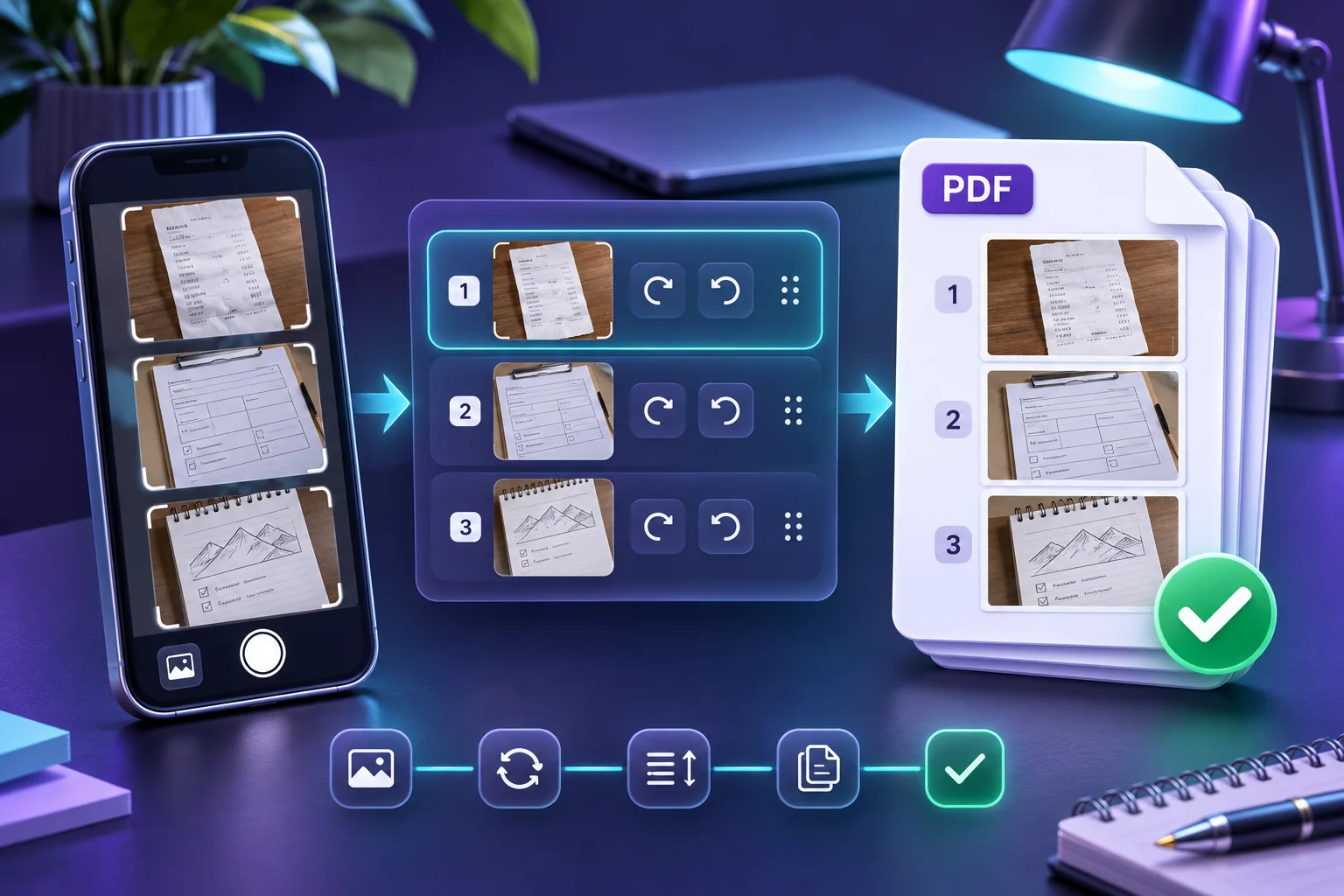
Start with usable source photographs
A converter cannot repair every capture problem. Photograph the document on a flat, contrasting surface with even light. Keep the camera parallel to the page, avoid shadows and glare, and capture all four edges. Check focus before moving to the next page.
Use the phone’s original image when possible instead of a messaging-app copy that may have been compressed. Do not include unrelated photographs or personal information that should not be shared. Crop or redact sensitive material with an appropriate workflow before assembling the final packet.
Build a clear receipt or form packet
Add the photographs to JPG to PDF, then arrange them in the order a reviewer should follow. Rotate sideways pages, remove accidental duplicates, and use the preview to check whether narrow receipts remain legible. Filename captions can help identify pages, but filenames should not expose unnecessary personal or confidential information.
For mixed receipts and full-size forms, A4 or Letter with Fit and a modest margin often creates a consistent packet. Auto pages preserve each image’s natural proportions but can produce varying page sizes. Choose the structure that matches the receiving system or reviewer’s requirements.
- Confirm focus and complete page edges.
- Order pages by date, section, or required checklist.
- Use Fit when no document edge may be lost.
- Check fine print in the final PDF preview.
- Retain sources until the submission is accepted.
Image PDFs are not automatically searchable PDFs
JPG to PDF places image pages into a PDF. It does not recognize words, create selectable text, or infer form fields. A person can read a clear photograph, but search and copy-and-paste will not work unless an OCR process adds a text layer afterward.
If searchability or accessible text is required, first create and verify the image PDF, then use a dedicated OCR workflow. Review OCR output carefully because names, totals, handwriting, low contrast, skew, and unusual fonts can be recognized incorrectly.
Privacy and final verification
The current JPG-to-PDF conversion runs in the browser, so selected images are not uploaded to PDFStack for this operation. The device, browser extensions, clipboard, downloads folder, cloud backup, and final delivery channel remain part of the user’s security responsibility.
Open the downloaded PDF and compare it with the source checklist. Confirm every page is present, readable, upright, and assigned to the correct packet. Check the file-size limit of the receiving portal, and use PDF compression only if necessary after preserving an acceptable master copy.
Frequently asked questions
Will receipt text become searchable after JPG-to-PDF conversion?
No. The PDF contains image pages. Run OCR separately when selectable or searchable text is required, then verify the recognized output.
What layout avoids cropping document photos?
Fit preserves the complete image. Combine it with A4 or Letter and suitable margins, then inspect the preview to confirm that every document edge remains visible.