

Layout and quality · 9 min read
JPG to PDF Page Size, Fit, Fill, Margins and Quality Explained
Understand A4 and Letter pages, image-sized output, Fit versus Fill, alignment, margins, and the real limits of JPG-to-PDF quality.
Published and reviewed by the PDFStack Team ·
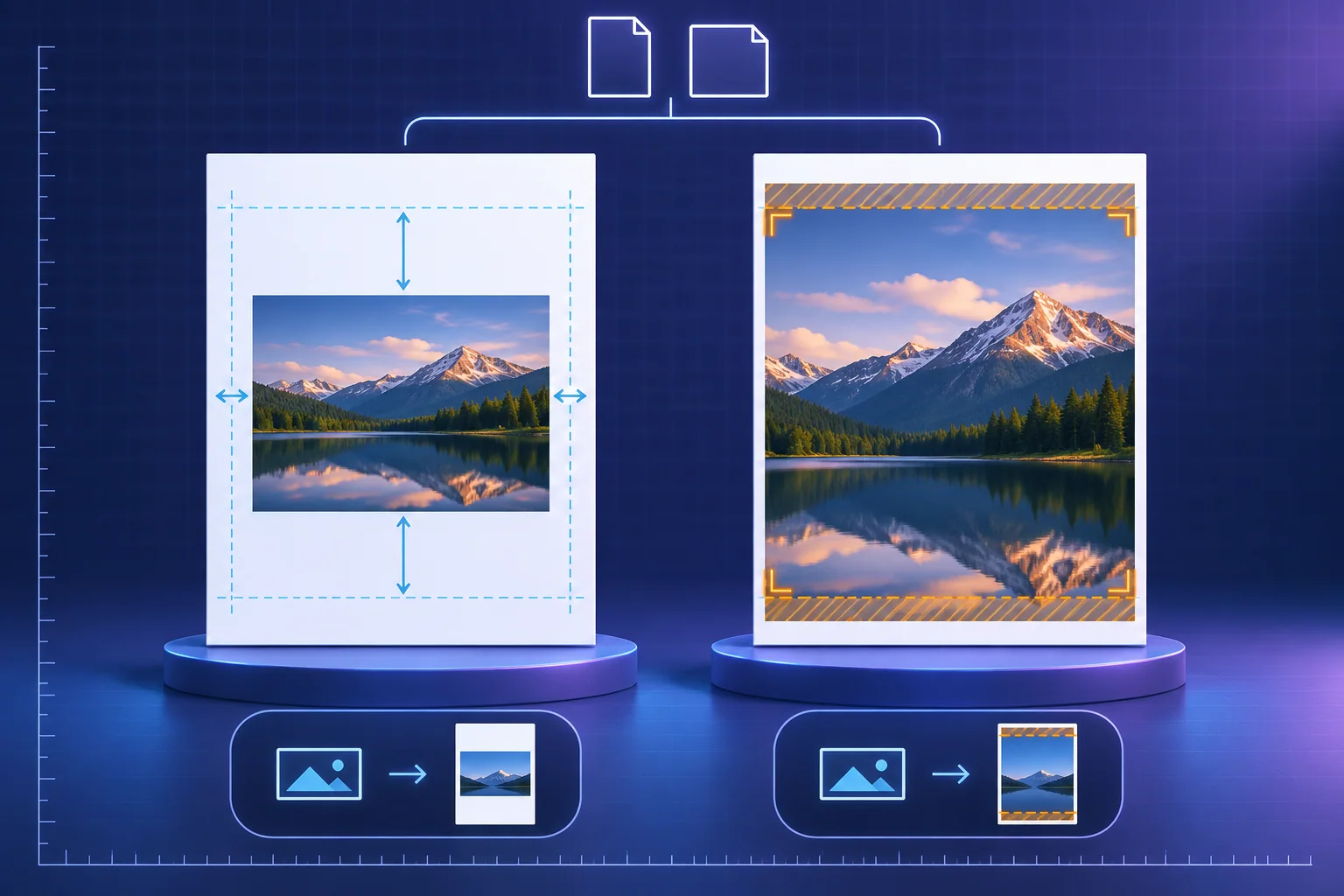
Page size and image size are different decisions
A JPG has pixel dimensions, such as 2400 by 1600 pixels. A PDF page has physical geometry measured in points. Choosing A4 or Letter does not add image detail; it defines the page rectangle onto which the image is placed.
PDFStack also offers Auto, where the page follows the image dimensions used by the layout engine. Auto is useful for preserving different aspect ratios without forcing every image onto the same paper. Fixed paper is more predictable for printing, binding, and consistent page navigation.
Fit versus Fill versus Original versus Stretch
Fit scales the image proportionally until the entire image is visible inside the available area. It does not crop, but it can leave blank space when image and page aspect ratios differ. Fill scales proportionally until the available area is covered, which can crop overflow at the edges.
Original avoids enlarging an image when possible, which can reduce unnecessary upscaling but may leave more page space. Stretch fills the target area without preserving the image aspect ratio, so circles can become ovals and people or objects can appear distorted. Use Stretch only when that tradeoff is understood.
- Fit: complete image, possible blank space.
- Fill: edge-to-edge area, possible cropping.
- Original: avoids enlargement when possible.
- Stretch: fills the area, possible distortion.
Margins, alignment and background control the composition
Margins reduce the content area inside the page. Standard presets provide quick spacing, while custom margins allow a specific value. Large margins can make a photo appear smaller; no margin allows the image to approach the page edge, although a physical printer may still have a non-printable region.
Horizontal and vertical alignment decide where remaining space or crop overflow is distributed. Center and middle are balanced defaults. Left, right, top, or bottom alignment can protect an important subject near one edge. The background color is visible wherever the image does not cover the page content area.
What the quality presets really change
The tool renders each planned page and stores image content using JPEG encoding. The High preset uses a denser render and the highest configured JPEG quality, while Balanced and Smaller trade output size against image detail. None is a byte-for-byte copy of the source JPG.
A higher setting cannot recover focus, detail, or resolution absent from the original. Inspect fine text, line art, gradients, and faces at useful zoom. For text-heavy screenshots or diagrams where lossy encoding is undesirable, a PNG-based workflow may be more appropriate, though the resulting PDF can be larger.
Frequently asked questions
How do I make a JPG fill an A4 page without distortion?
Choose A4 and Fill to preserve aspect ratio while covering the page area, then inspect which edges are cropped. Stretch fills without cropping but can distort the image.
Does High Quality preserve the original JPG exactly?
No. The page is rendered and JPEG-encoded again. High Quality uses the strongest available preset, but it is not a byte-for-byte source copy.