

Complete guide · 8 min read
How to Combine Multiple JPG Images into One PDF
Arrange JPG and JPEG images in the correct page order, choose a practical layout, preview the result, and create one reviewed PDF.
Published and reviewed by the PDFStack Team ·
What happens when JPG images become a PDF?
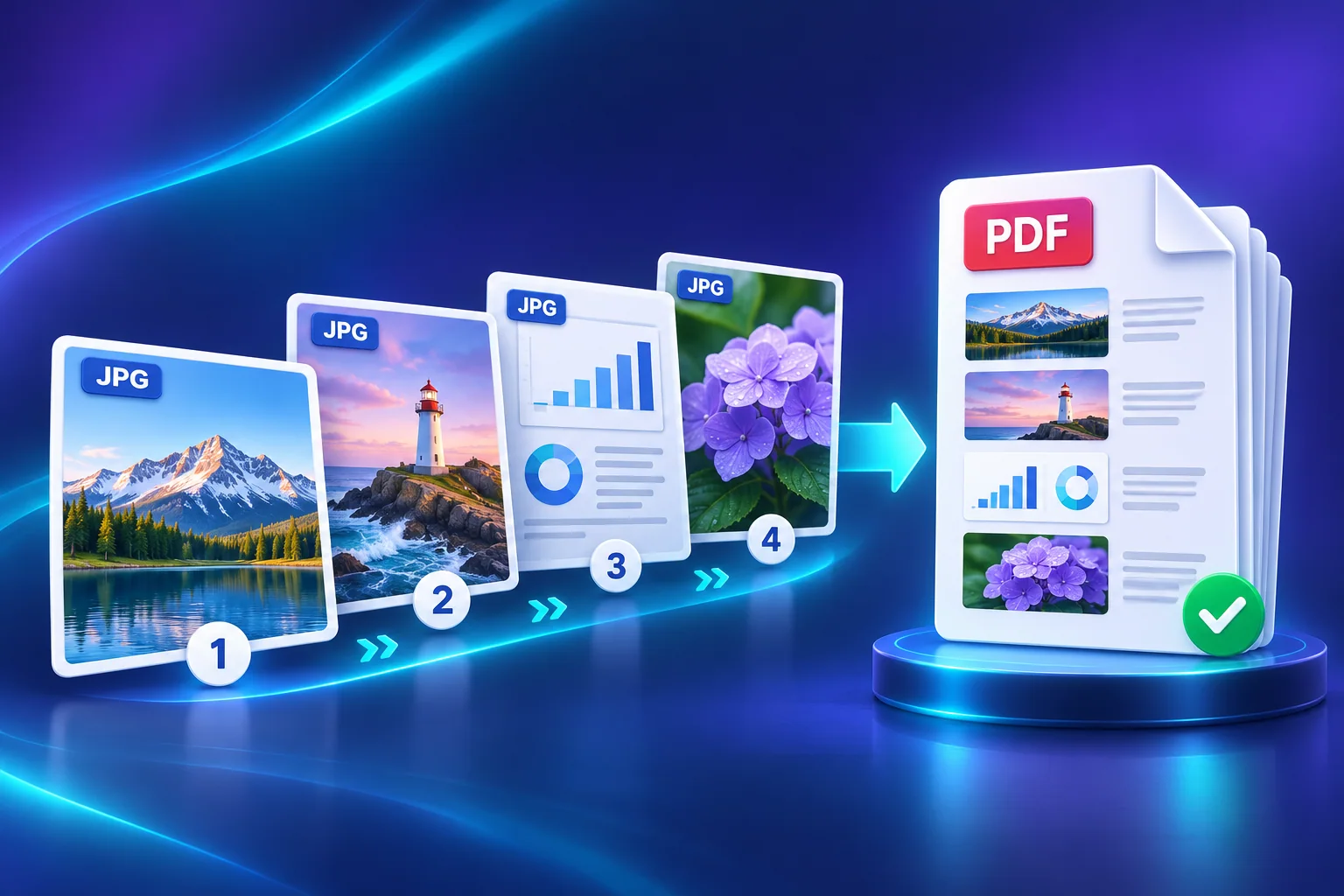
A JPG-to-PDF converter places image pixels onto PDF pages. When several images are combined, the image order becomes the page order of the new document. This makes one PDF easier to review, print, archive, or attach than a collection of separate photos.
The conversion does not restore detail that is missing from the JPG, make photographed text editable, or preserve the original image bytes unchanged. PDFStack renders the selected page layout and encodes image content into a new PDF, so the result should be visually reviewed before it is used.
Combine JPG files step by step
Open JPG to PDF and select the images. The studio reads supported images in the browser and displays a card for each file. Drag cards into reading order or use the move controls. Rotate any sideways image, remove duplicates, and duplicate a card only when that image must appear on more than one page.
Keep the default combined-PDF output when every active image should become part of one document. Choose the page size, margins and placement mode, then inspect the live page preview. Select Create PDF, wait for local rendering to finish, inspect the generated PDF, and download it.
- Add the intended images and remove accidental selections.
- Arrange the exact reading order.
- Correct rotation before choosing page geometry.
- Preview crop boundaries and blank space.
- Check the final PDF page count before sharing.
Choose a page size for the way the PDF will be used
Auto creates a page from each image’s dimensions and orientation. It is useful when natural image proportions matter more than uniform paper. A4 or Letter creates a consistent document for common printing and office workflows. Legal, A3 and A5 are available for more specific paper needs, while custom dimensions use PDF points.
A batch can contain portrait and landscape images. Auto orientation can adapt the fixed paper orientation to each image, while a forced portrait or landscape setting keeps the same orientation choice. Review each page because a layout that works for one aspect ratio may leave extra space or crop another.
Verify the combined PDF
Compare the generated page count with the number of active images. Check the first page, the last page, and every transition where the subject changes. Confirm that captions, page numbers, title, and author metadata are present only when intended.
Keep the source images until the PDF has been accepted. For important records, reopen the downloaded PDF in the viewer your recipient uses and test printing or upload requirements separately. A valid PDF can still have an incorrect order, an unwanted crop, or insufficient source resolution.
Frequently asked questions
Can I change the image order before conversion?
Yes. Drag image cards or use the move controls. The active-card order becomes the combined PDF page order.
Can I create separate PDFs instead?
Yes. Choose Individual PDFs to create one PDF per active image and optionally package the results into a browser-generated ZIP.