

Quality and privacy · 7 min read
PDF Page Numbering: Quality, Privacy, and Final Checks
Understand browser-local processing, placement risks, and the checks that prevent bad pagination.
How browser-local numbering works
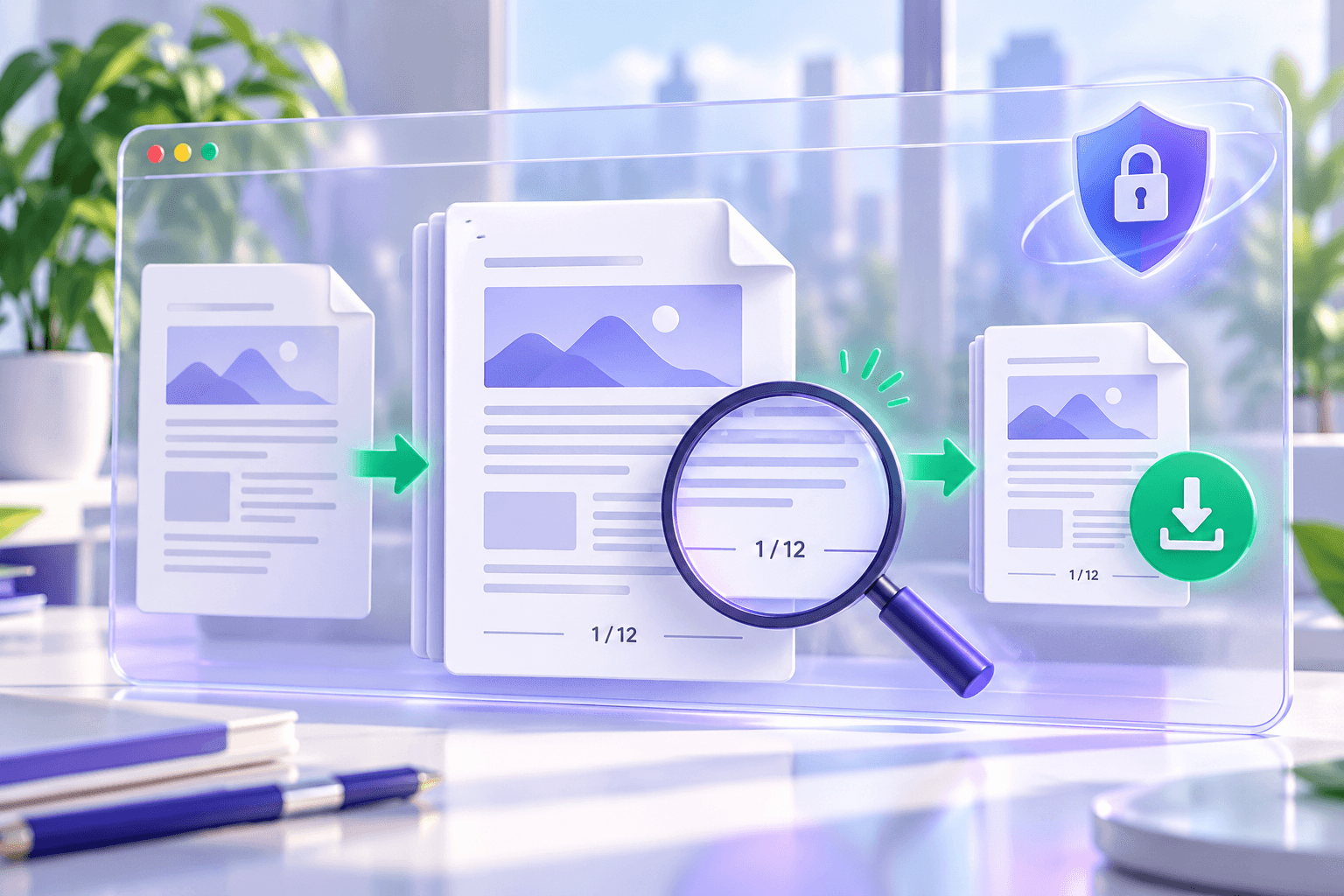
The tool reads the selected PDF and writes number text onto chosen pages in the browser. The current workflow does not need to upload the document to PDFStack servers. The new file remains on the device unless you choose to share it.
Local processing reduces server-side file exposure, but the device, browser extensions, downloads folder, backups, and network environment remain under the user’s control. Follow your organization’s handling rules for sensitive material.
Prevent overlap and clipping
Page dimensions and existing margins vary. A setting that looks good on one document can overlap content in another, especially when a file mixes portrait, landscape, or cropped pages.
Preview the result at normal zoom. Check pages with footnotes, full-bleed artwork, rotated content, and unusual dimensions. Increase the margin or switch position when a number is too close to an edge.
- Inspect the first and last numbered pages.
- Check portrait and landscape pages.
- Confirm skipped pages stayed unchanged.
- Reopen the downloaded PDF before sharing.
Know what numbering does not do
Adding visible text does not rebuild a table of contents, create internal page labels, repair a damaged PDF, run OCR, or guarantee preservation of digital signatures and advanced interactive structures.
Keep the source file. When signatures, forms, accessibility tags, print production, or legal evidence matters, validate the new file in the recipient’s expected viewer and workflow.
Questions about this workflow
Are my PDFs uploaded?
No. The current Add Page Numbers workflow processes selected files in the browser.
Will digital signatures stay valid?
Changing a PDF can affect signatures. Validate the result or re-sign it according to the applicable workflow.